
What Merge PDF does — and when to use it
Merging PDFs sounds trivial until you're staring at six attachments — an offer letter, three bank statements, a scan of your ID and a tax form — that a portal insists on receiving as one file. FreeConvertor Merge PDF solves exactly that: drop in up to 20 PDFs, put them in the right order, and download a single, clean document in seconds.
Unlike server-based mergers, everything happens locally with pdf-lib running in your browser. Your contracts, medical records and financial statements are never uploaded, never queued and never stored. Merging a handful of ordinary documents usually takes a few seconds, and each page keeps its text, fonts, links and page size exactly as in the original.
This tool is built for real workflows: job applications that demand a single CV-plus-certificates file, visa dossiers, mortgage packs, university admissions, freelance invoices bundled with timesheets, and product manuals stitched from chapters. Because the merger copies pages rather than turning them into images, text stays selectable and the output is roughly the size of the inputs combined — no blurry re-prints and no watermark.
How to use Merge PDF, step by step
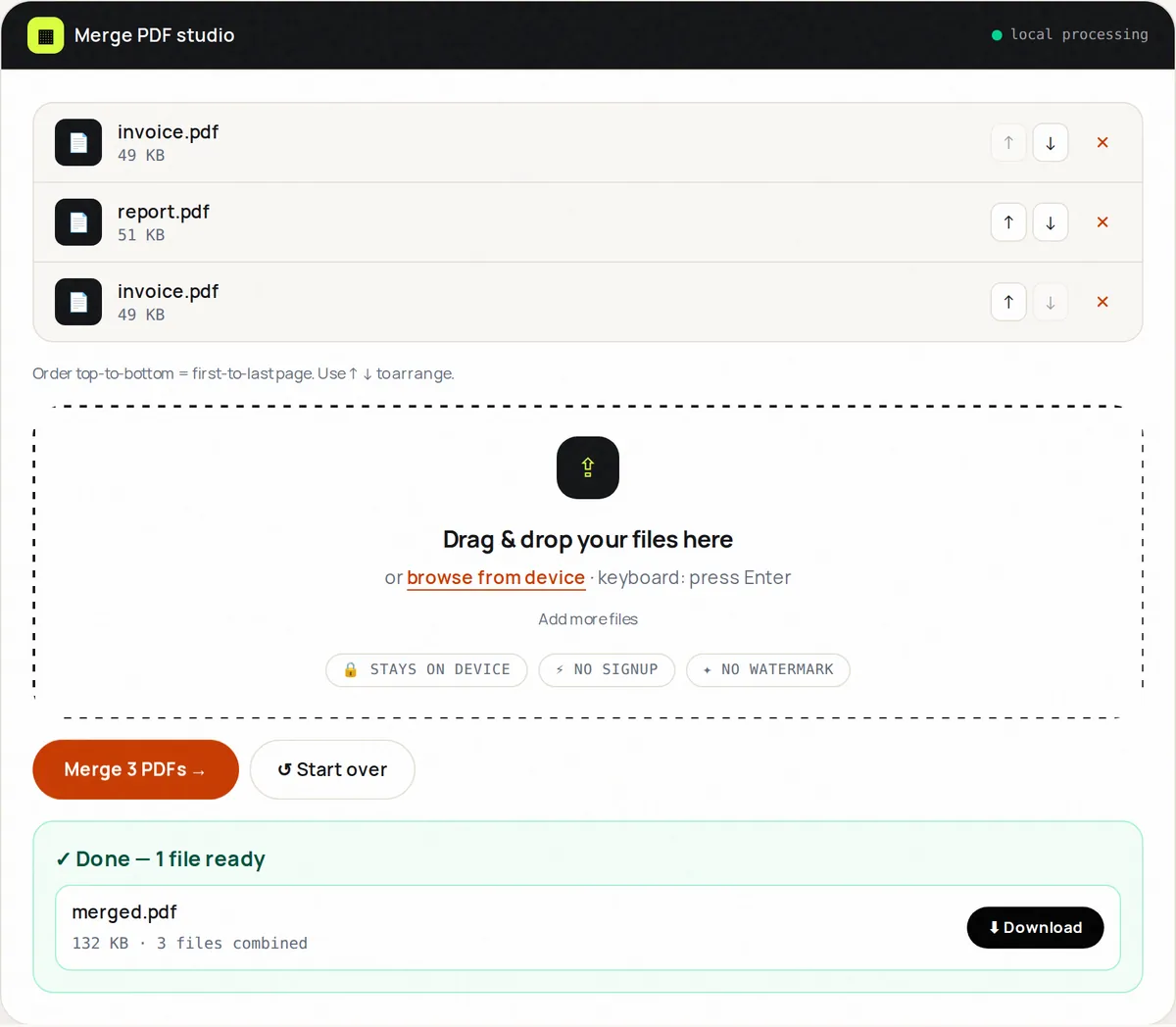
- Drop 2–20 PDF files onto the upload area (or press Enter and browse). Each file is validated instantly — non-PDFs are rejected with a clear message.
- Use the ↑ ↓ buttons to put the files in the right sequence. Remove any file you added by mistake with ✕.
- If a file is password-protected you will see a warning — unlock it first with Protect PDF.
- Click “Merge PDFs”. The files are combined in the order shown in the list.
- Download the merged PDF, verify the first and last pages, then hit “Start over” to merge another set. Your files vanish from memory when you reset.
Supported formats & limits
- Input: PDF (.pdf) only, up to 100 MB per file, 20 files max
- Output: PDF 1.7 with object streams, vector text preserved
- Encrypted PDFs: password-protected files must be unlocked first (Protect PDF → Unlock, with the password)
- Best paired with: Split PDF, Reorder Pages, Compress PDF for email-ready bundles
Key features
Choose the order
Move files up and down in the list before merging, so the document reads in the right sequence.
Text stays selectable
Pages are copied as vectors, not flattened images, so search, copy-paste and accessibility survive.
Private by design
pdf-lib runs inside your browser tab, so the PDFs are combined on your device and are not uploaded.
Handles mixed sizes
A4 reports, US-Letter invoices and square portfolios merge cleanly; each page keeps its own dimensions.
Instant validation
Wrong extensions, empty files and oversized uploads are caught before processing with human-readable errors.
One-click reset
Clear state and merge a second bundle without reloading the page.
Privacy promise
Your files never leave this tab.
This tool processes your file with JavaScript libraries (pdf-lib, pdf.js, Canvas) running in your own browser. The file is not sent to our server, and nothing is kept after you close or reset the page. That makes it a sensible choice for contracts, IDs and other private documents.
Common use cases
Job & visa applications
Bundle CV, cover letter, certificates and ID scans into the single upload portals demand.
Finance & legal packs
Combine statements, contracts and annexes into one paginated exhibit for accountants or counsel.
Academic submissions
Stitch chapters, bibliography and declaration pages into a thesis-ready PDF.
Freelancer invoicing
Attach timesheets and receipts behind the invoice so clients pay faster.
Real-estate dossiers
Merge inspection reports, photos-as-PDF and agreements for buyers.
Tips for best results
- Name files 01-offer, 02-statement so they start in the right order.
- Merge first, then compress the finished bundle once — it is quicker than compressing every file separately.
- If a portal caps uploads at 10 MB, merge then run our Compress PDF on the bundle.
- Keep the originals until the recipient confirms receipt; merging is non-destructive but re-ordering from scratch is tedious.
- For scanned bundles, run pages through PDF Scanner's contrast filter before merging for a uniform look.
Common mistakes to avoid
- Merging screenshots saved as .pdf with real text PDFs — raster pages bloat the file; convert thoughtfully.
- Forgetting to check page counts and shipping a 2-page statement instead of 12.
- Uploading password-protected PDFs and wondering why they fail — unlock them first.
- Merging 20 huge scans on a phone browser — do it on desktop or compress images first.
Learn more
- How to reduce PDF file size (and what actually makes PDFs big) — Why some PDFs are huge, which compression methods work for which kind of document, and how to get under email and upload limits without ruining quality.
- How to password-protect a PDF — and what PDF encryption really protects — Open vs permission passwords, why AES-256 matters, how to choose and share a password safely, and what a PDF password cannot do.
- How to merge, split and reorganize PDF pages without losing quality — When to merge, split, extract, delete, reorder or rotate PDF pages for application packs, reports and scans — without losing text quality.
Frequently asked questions
+Is merging PDFs free? Any watermark?
Yes — free, unlimited, no watermark, no signup. The output is a standard PDF you can share anywhere.
+Are my files uploaded to a server?
No. All merging happens in your browser with pdf-lib. You can disconnect from Wi-Fi after the page loads and it still works.
+How many PDFs can I merge at once?
Up to 20 files, 100 MB each. For larger bundles, merge in two batches, then merge the two results. Very large merges are faster on a computer than on a phone.
+Will links and formatting survive?
Page content, fonts, text and links on each page are preserved. Bookmarks and some interactive form fields belong to the whole document and may not carry over — test with one file first if you rely on them.
+Can I merge password-protected PDFs?
Not directly. Remove the password first with Protect PDF in Unlock mode (you need to know the password), then merge.
+Why is my merged file so large?
Scanned pages are images. Run the result through Compress PDF or re-scan at 150 DPI instead of 300 DPI.
+Can I reorder pages inside one PDF while merging?
Merging orders whole files. To interleave pages from inside files, merge first then use Reorder PDF Pages.