
A PDF is a container. It can hold text, vector drawings, fonts, photos, scanned page images, form fields, attachments and metadata. Two PDFs with the same number of pages can therefore differ in size by a factor of a hundred: a ten-page contract exported from a word processor might be 150 KB, while the same ten pages scanned on an office copier at 600 DPI can easily pass 30 MB.
That is why there is no single "compress" button that works equally well on every file. The right method depends on what is inside the PDF. This guide explains how to tell, which technique fits each case, and how to avoid the common mistakes that make documents unreadable or barely smaller.
Step 1: find out what is making the file large
Open the PDF and try to select a line of text with your cursor. If you can highlight individual words, the page contains real text, and the file is probably large because of embedded images or fonts. If the whole page behaves like one picture, it is a scan or an image-only export, and almost all of its weight is pixels.
A quick rule of thumb: divide the file size by the page count. Text documents usually come in well under 100 KB per page. Pages with a few photos are typically 100–500 KB. Anything above 1 MB per page is almost always a high-resolution scan or a document that embeds full-size camera photos.
The main causes of oversized PDFs
- High-resolution scans. A letter-size page scanned in colour at 300 DPI is about 2550 × 3300 pixels; at 600 DPI it is four times that. Scanners often default to settings meant for archiving, not emailing.
- Full-size photos. Inserting a 12-megapixel phone photo into a document and exporting to PDF often embeds the full original even if it is displayed as a small thumbnail.
- Fully embedded fonts. Some exporters embed every glyph of every font instead of only the characters used (called subsetting). Each full font can add hundreds of kilobytes.
- Repeated or unused resources. Documents assembled from many sources can contain duplicate images, leftover objects and old revisions appended by incremental saves.
- Attachments and extras. PDF portfolios, embedded files, page thumbnails and large XMP metadata blocks all add bytes that readers never display.
Method 1: lossless clean-up (keeps text selectable)
Lossless optimization rewrites the PDF's internal structure without touching what you see. It packs objects into compressed object streams, drops objects nothing refers to, and discards the history of incremental edits. The text stays searchable, links keep working and nothing is resampled.
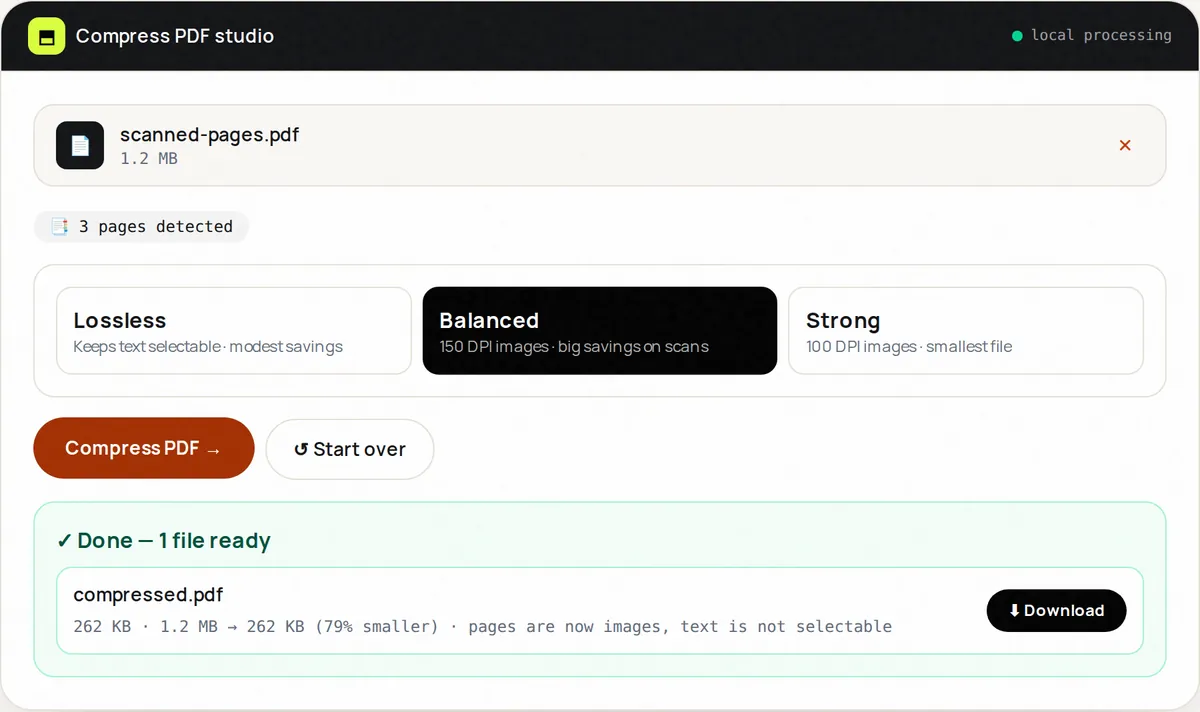
Expect modest results: anywhere from a few percent to around a third smaller for documents produced by office software or saved many times. On scans and photo-heavy files the gain is usually small, because the bulk of the file is already-compressed image data. In Compress PDF this is the Lossless level; if the result would not be smaller, the tool tells you and gives back your original instead of a bigger file.
Method 2: re-encoding pages as images (big savings on scans)
When a PDF is mostly pixels, the only way to make it dramatically smaller is to store fewer, better-compressed pixels. FreeConvertor's Balanced and Strong levels do this by rendering every page to a JPEG image (at 150 DPI or 100 DPI) and building a new PDF from those images. A 40 MB, 600 DPI scan typically ends up a small fraction of its original size.
The trade-off is important to understand: after this kind of compression every page is a picture. Text can no longer be selected or searched, hyperlinks and form fields disappear, and very small print loses some sharpness. For a scanned ID, a signed form or a stack of receipts that is usually fine. For a text-based report you will keep editing, use the lossless level instead.
- 150 DPI (Balanced): comfortable on screen and acceptable for most office printing. A good default for portals and email.
- 100 DPI (Strong): the smallest result. Fine for reading on screen; small footnotes may look soft when printed.
- 300 DPI and above: what printers and archives expect. If you need that quality, compress less and split the file instead.
Method 3: fix the source instead of the PDF
Often the most effective compression happens before the PDF exists. Re-scan at 150–200 DPI in grayscale for text documents instead of 600 DPI colour. In a word processor, use the "compress pictures" or "reduce file size" option before exporting. For photo-based PDFs, shrink the photos first with Image Compress or Image Resize and then rebuild the document with JPG to PDF.
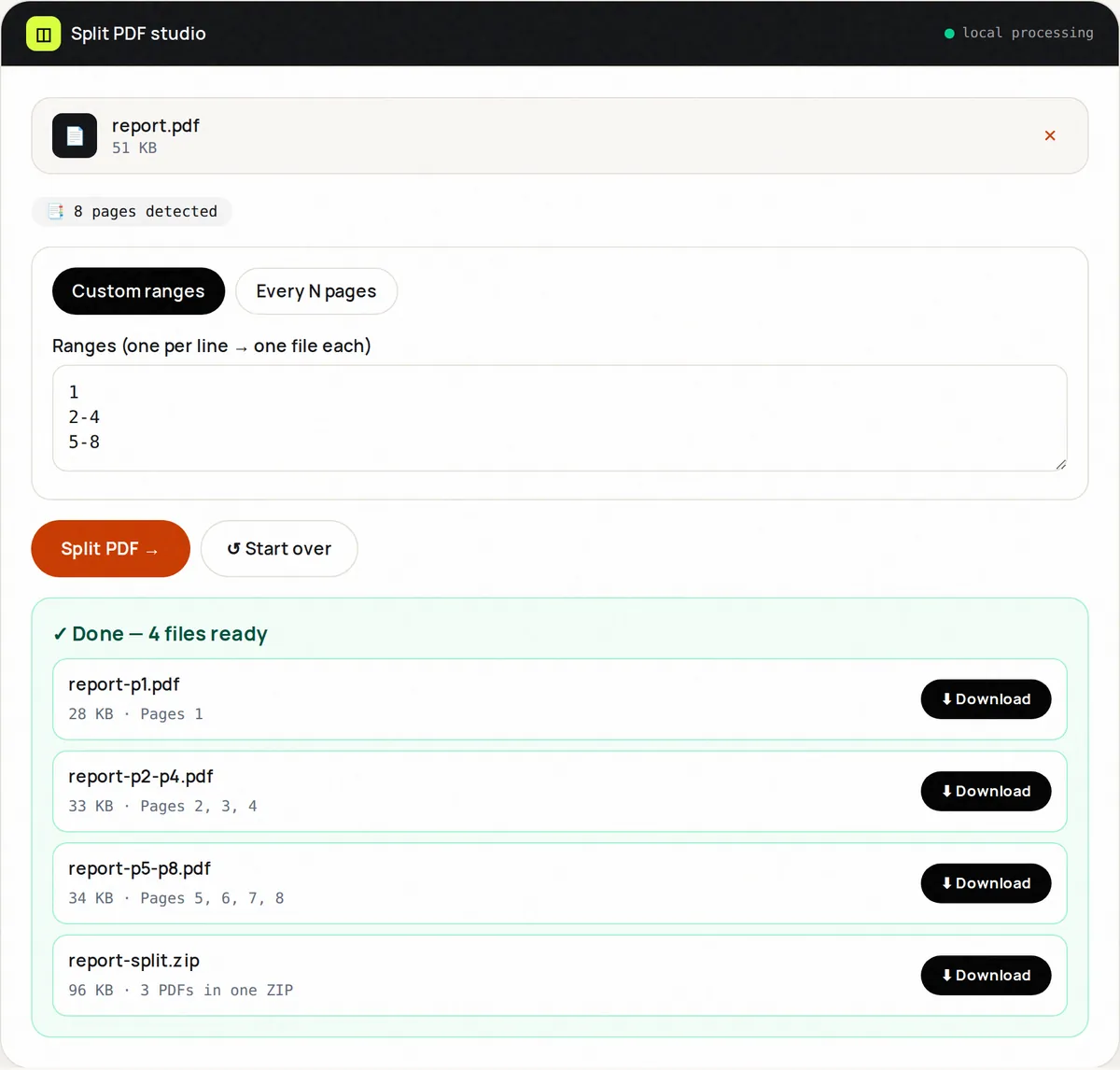
If the document is long rather than heavy, consider sending less of it. Split PDF or Extract PDF Pages let you send only the pages the recipient asked for.
Hitting a specific size limit
Upload portals and email services publish hard limits. Gmail, for example, accepts attachments up to 25 MB in total per message, and many job, visa and university portals cap individual files at 2–10 MB. A practical sequence that works for most documents:
- Run the lossless level first. If the file is already under the limit, you are done and nothing is lost.
- If it is still too large and the document is a scan, use Balanced (150 DPI). Open the result and zoom in on the smallest text to confirm it is readable.
- Still too big? Use Strong (100 DPI), or split the document into parts and upload them separately if the portal allows it.
- Keep the original. Compression with images is one-way; you cannot get the lost detail back from the compressed copy.
Mistakes to avoid
- Compressing the same file repeatedly. Each image pass loses a little more detail and saves less and less space.
- Image-compressing documents that must stay searchable or accessible to screen readers. Use the lossless level for those.
- Compressing signed documents whose digital signature must remain valid. Any rewrite of the file, even lossless, invalidates a cryptographic signature.
- Sending the compressed file without opening it. Always check the page count and the smallest text before you submit anything important.
Frequently asked questions
Why did my PDF barely shrink with lossless compression?
Because most of its size is image data that is already compressed. Lossless optimization only removes structural overhead. Use the Balanced or Strong level, which re-encodes the page images, if losing selectable text is acceptable.
Is it safe to compress confidential PDFs online?
With FreeConvertor the file is processed by JavaScript running in your own browser and is not uploaded to our server. With other services, check whether files are uploaded and how long they are kept.
What DPI is good enough for documents?
150 DPI is comfortable for reading on screen and fine for most office printing. 300 DPI is the usual standard for high-quality print. Below 100 DPI, small print starts to blur.