
Choosing an image format looks like a technical detail, but it decides how sharp an image looks, whether it can have a transparent background, and whether it weighs 80 KB or 3 MB. Picking the wrong one is the most common reason websites are slow and screenshots look smudged.
The short version: use JPEG or WebP for photographs, PNG or lossless WebP for screenshots, logos and anything with sharp edges or transparency, and keep your originals so you can re-export later. The rest of this guide explains why.
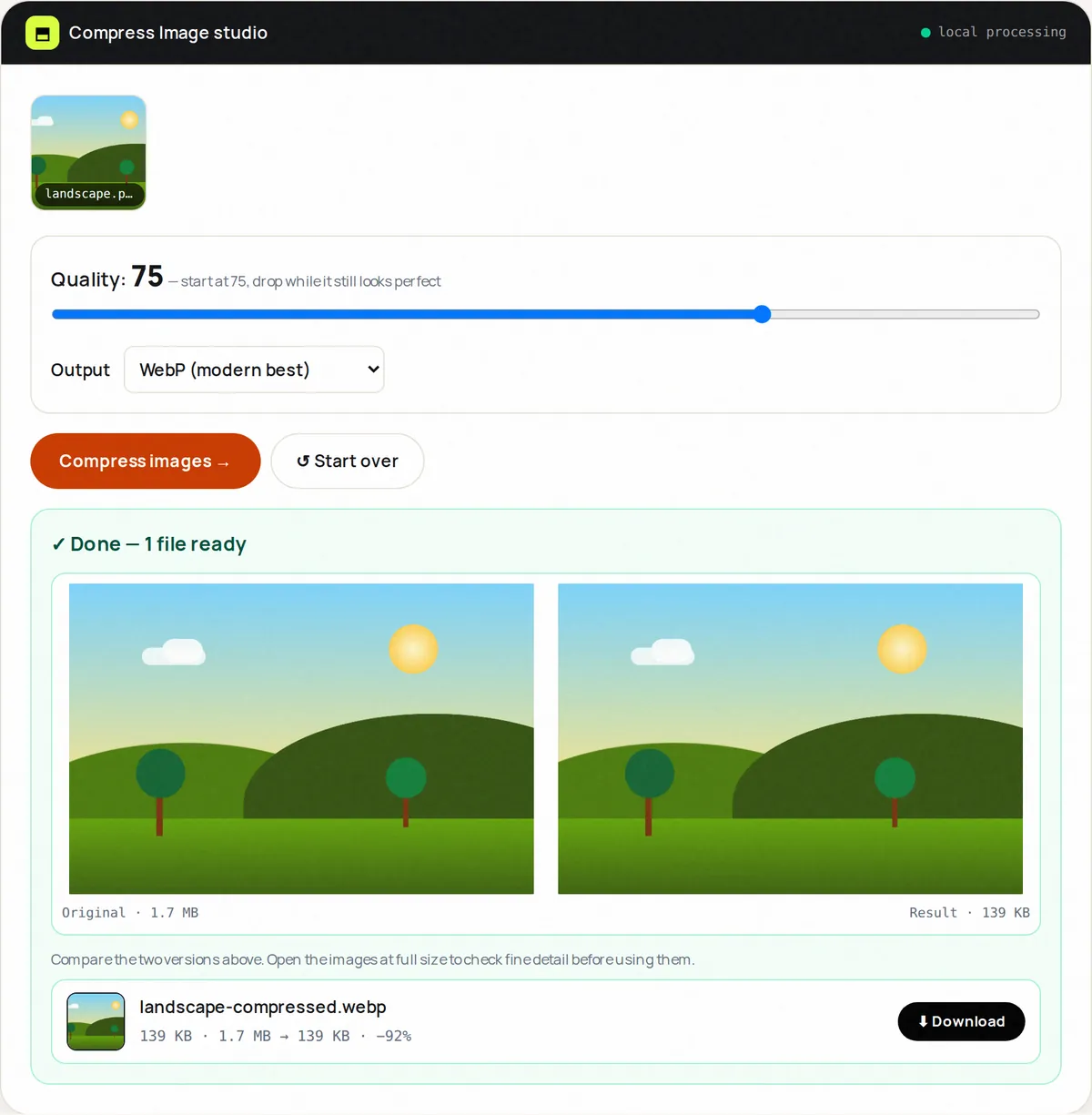
Lossy versus lossless compression
Every format here compresses images, but in one of two ways. Lossless compression (PNG, lossless WebP) stores the image so that it can be reconstructed pixel for pixel. Lossy compression (JPEG, lossy WebP, AVIF) throws away detail the eye is unlikely to notice, which makes files much smaller but means every save loses a little information.
Lossy compression is excellent for photographs, where colours change gradually and small errors are invisible. It is poor for text, line art and flat-colour graphics, where it produces the fuzzy halos ("artifacts") you see around letters in a low-quality screenshot.
JPEG (.jpg): the universal photo format
JPEG has been the default format for photographs since the early 1990s and every device, browser, email client and printer supports it. It does not support transparency: any transparent area becomes a solid colour (FreeConvertor fills it with white). Quality settings between about 70 and 85 are usually indistinguishable from the original at normal viewing size while being a fraction of the size.
- Use for: photos, camera images, scans you want to keep small, images you must send to people or systems with unknown software.
- Avoid for: screenshots, logos, diagrams, anything needing transparency.
PNG (.png): sharp edges and transparency
PNG is lossless and supports full alpha transparency, which is why it is the standard for logos, icons, UI screenshots and diagrams. The cost is size: a photograph saved as PNG is typically several times larger than the same photo as a good JPEG, with no visible benefit.
- Use for: screenshots, logos, icons, charts, images with text, anything that needs a transparent background.
- Avoid for: photographs on the web, where PNG only adds weight.
WebP (.webp): one format for both jobs
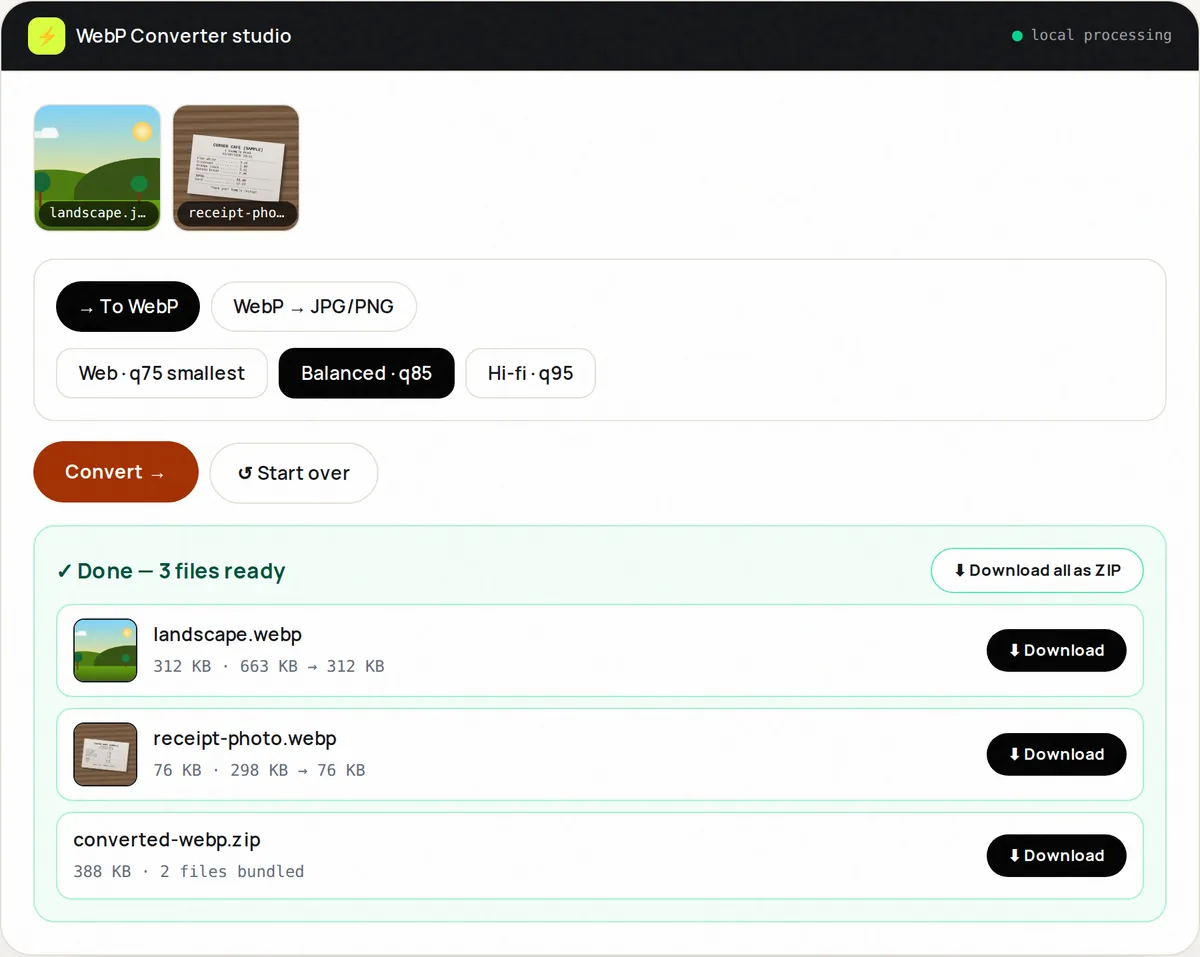
WebP was developed by Google and supports both lossy and lossless compression, transparency and animation. Google's published comparisons found lossless WebP images about 26% smaller than PNG, and lossy WebP images 25–34% smaller than JPEG at equivalent quality. Every current major browser displays WebP, including Safari since 2020, so it is a safe default for websites.
Support outside browsers is good but not universal: some older desktop software, print services and upload forms still reject .webp files. When you need to send an image to an unknown system, JPEG or PNG is still the safer choice. The WebP Converter converts in both directions.
AVIF (.avif): smallest, but slower to create
AVIF is based on the AV1 video codec and usually produces even smaller files than WebP at the same visual quality, especially at low bitrates. Chrome, Edge, Firefox and Safari 16+ can display it. Encoding is slow, however, and browsers cannot reliably create AVIF files from a web page, so FreeConvertor can read AVIF images but exports JPG, PNG or WebP. For most sites, WebP gives most of the benefit with less friction.
GIF and BMP: legacy formats
GIF is limited to 256 colours, which makes photos look blotchy. It survives mainly for simple animations; animated WebP or a short video file is usually smaller and better looking. BMP stores pixels with little or no compression and has no advantage for sharing; convert it to PNG or JPEG.
Quick decision table
- Photo for a website → WebP (quality 75–85), or JPEG if a system rejects WebP.
- Photo to email or print → JPEG, quality 85–92.
- Screenshot with text → PNG, or lossless WebP for the web.
- Logo or icon with transparency → PNG (or SVG if you have the vector original).
- Page of a PDF as an image → JPG for photo-heavy pages, PNG for text-heavy pages (PDF to JPG, PDF to PNG).
Converting without losing quality
Converting from a lossy format to a lossless one (JPEG to PNG) does not bring back lost detail; it only makes the file larger. Converting between lossy formats (JPEG to WebP) re-compresses the image, so start from the best original you have and convert once. Always keep the original file: formats and best practices change, and a high-quality master lets you export again later. FreeConvertor's Image Converter lets you set the quality for lossy outputs and processes up to ten files at once in your browser.
Frequently asked questions
Is WebP better than JPEG?
For websites, usually yes: it is smaller at the same visual quality and every current browser supports it. For sending files to people or older software, JPEG remains more compatible.
Does converting PNG to JPG reduce quality?
Yes, slightly, because JPEG is lossy, and any transparency becomes a solid background. For photos saved as PNG the size saving is usually worth it; for screenshots and logos keep PNG.
Why can't I convert to AVIF here?
Browsers can display AVIF but cannot reliably encode it from a web page, and FreeConvertor processes everything in your browser. Use WebP, which is widely supported and nearly as efficient.