
What PDF to PNG does — and when to use it
When edges must stay razor-sharp — logos, blueprints, UI mockups, math-heavy pages — PDF to PNG exports each page as a lossless PNG at up to 300 DPI, with no JPEG artifacts around text.
Like PDF to JPG, conversion runs on pdf.js in your browser, with per-page or ZIP download. PNGs are bigger than JPGs (lossless costs bytes), so pick this tool deliberately: design handoffs, print figures, archival extracts.
150 DPI suits most on-screen uses such as slides and design handoffs; choose 300 DPI for print and accept the larger files.
How to use PDF to PNG, step by step
- Upload one PDF (up to 100 MB).
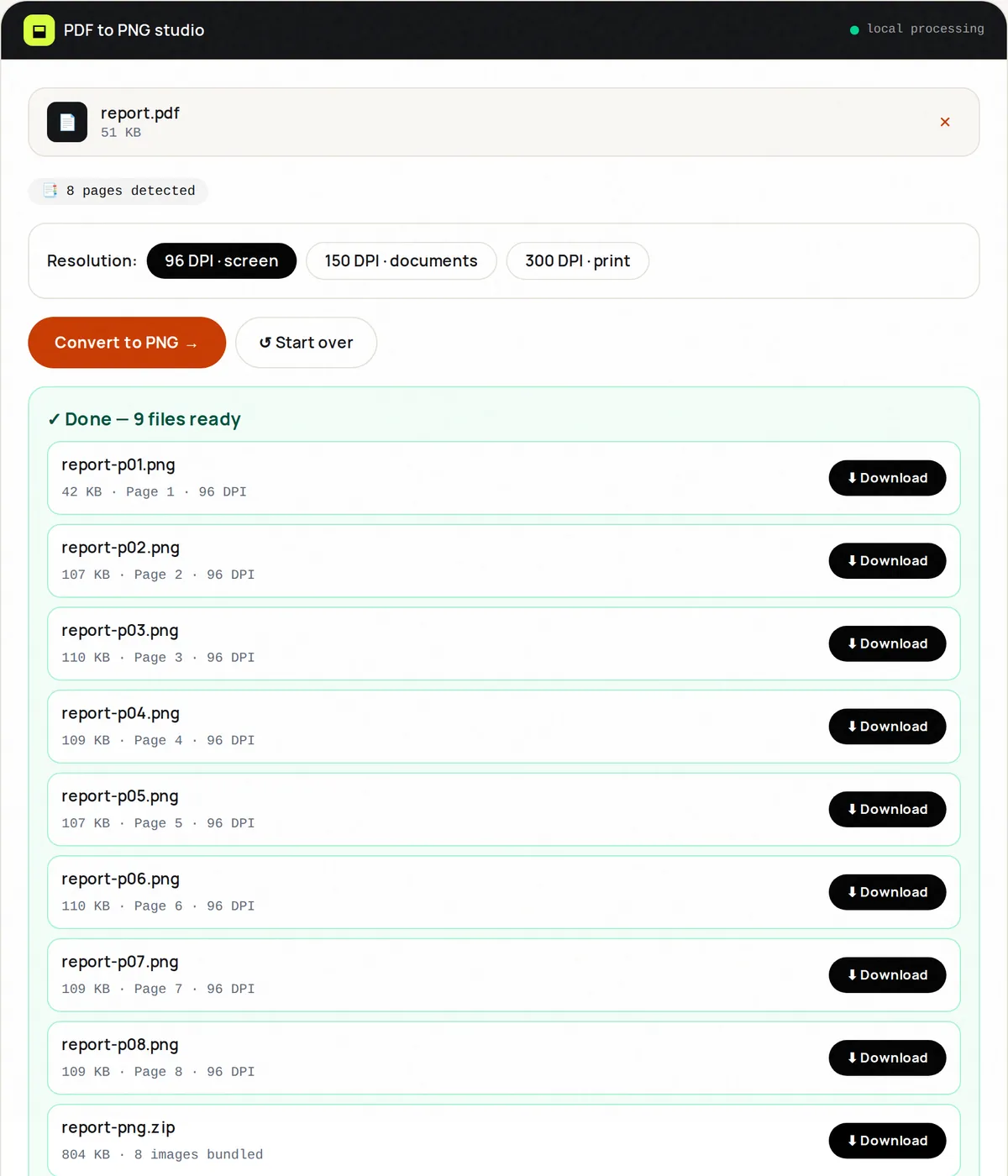
- Select 96, 150 or 300 DPI.
- Click Convert; pages are added to the results list as they are rendered.
- Download single PNGs or the ZIP bundle.
- For photos where size matters, retry as PDF to JPG.
Supported formats & limits
- Input: PDF up to 100 MB
- Output: one PNG per page (lossless, white background)
- Resolutions: 96, 150 or 300 DPI
- Smaller files needed? Use PDF to JPG
Key features
Lossless output
Zero compression artifacts — text and line art stay perfect.
Up to 300 DPI
Print-ready resolution when you need it.
Page-by-page results
First pages are ready while later ones still render.
Selective download
One page or all — your call.
Design-ready
sRGB PNGs drop straight into Figma, Photoshop, Keynote.
Local rendering
No cloud rasterizer ever sees your document.
Privacy promise
Your files never leave this tab.
This tool processes your file with JavaScript libraries (pdf-lib, pdf.js, Canvas) running in your own browser. The file is not sent to our server, and nothing is kept after you close or reset the page. That makes it a sensible choice for contracts, IDs and other private documents.
Common use cases
Design handoffs
Extract spec pages as assets for developers.
Academic figures
Pull charts at print resolution for papers.
Legal exhibits
Lossless page images for filings.
Marketing
Report covers as website hero images.
Archiving
Pixel-exact page snapshots.
Tips for best results
- 150 DPI is plenty for screens; use 300 DPI for anything headed to paper.
- Huge blueprint? Convert, then run PNGs through Image Compress.
- Name the source PDF well — exports inherit it.
- Pages are rendered on a white background, as they would print.
- Batch across files by converting one PDF at a time and merging ZIPs.
Common mistakes to avoid
- Exporting 200 photo pages as PNG and wondering why the ZIP is 800 MB — use JPG for photos.
- Using 96 DPI for print — text will look soft.
- Forgetting PNGs have no selectable text.
- Rendering long documents at 300 DPI on a low-memory phone — use a computer for big jobs.
Learn more
- JPG vs PNG vs WebP vs AVIF: which image format should you use? — How JPEG, PNG, WebP, AVIF and GIF compress, when transparency matters, browser support, and which to pick for photos, screenshots and logos.
Frequently asked questions
+How is this different from PDF to JPG?
PNG is lossless and sharper for text/logos but larger. JPG is smaller and better for photos.
+Can I get transparent backgrounds?
PDF pages flatten onto white during render, so exports have white backgrounds.
+What DPI do I get?
Exactly the DPI you choose: 96, 150 or 300. An A4 page at 300 DPI is about 2480 × 3508 pixels.
+Can I export one page only?
Yes — download that page's thumbnail individually.
+Do PNGs keep hyperlinks?
No — images can't carry links. Keep the PDF alongside for interactivity.
+Is conversion private?
Fully — pdf.js renders inside your browser tab.