
A simple workflow for web-ready images
Images are usually the heaviest part of a web page, and photos straight from a phone are many times larger than any layout needs. The fix is a short sequence that works for blogs, online shops and portfolios alike:
- Crop to the shape of the slot the image will fill — 1:1 for product grids, 16:9 for banners — with Image Crop.
- Resize to the largest size it is displayed at, doubled for high-density screens, with Image Resize. An image shown 800 pixels wide needs about 1600 pixels, not 4000.
- Convert photos to WebP with the WebP Converter, or between JPG and PNG with the Image Converter.
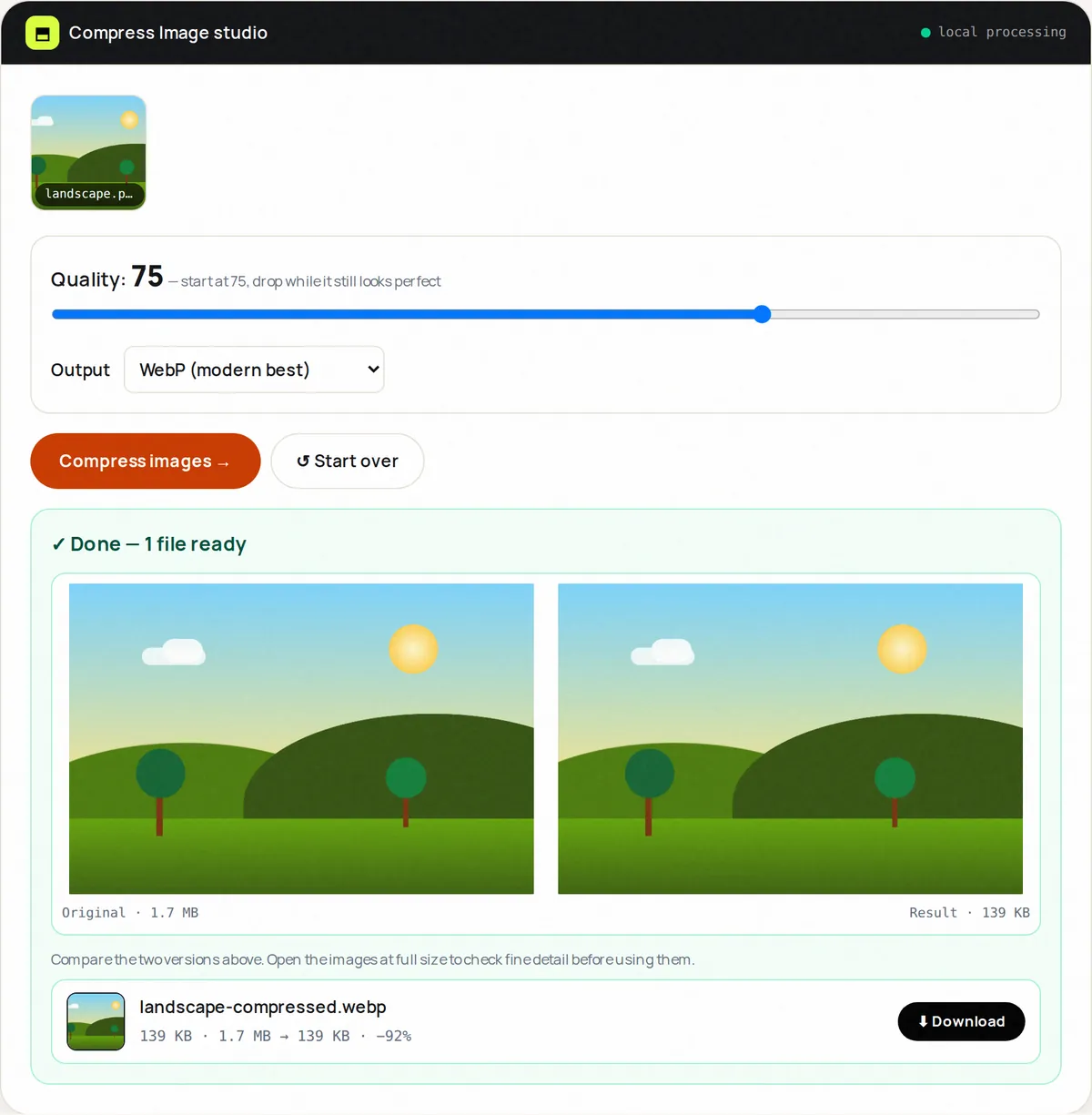
- Compress with Image Compress, lowering quality until you can see a difference in the side-by-side preview, then stepping back up.
Our guide on optimizing images for a website covers the HTML side as well — width and height attributes, lazy loading and srcset — and JPG vs PNG vs WebP vs AVIF explains when each format makes sense.
Beyond the web
Image to PDF combines photos, screenshots and scans of any common format into one paginated PDF — useful for receipts, homework and portfolios. The Favicon Generator turns one square logo into the full set of icons browsers and phones expect: favicon.ico, PNG icons from 16 to 512 pixels, an Apple touch icon and a web manifest. See the favicon sizes guide for what each file does.
How the image tools work
Each tool loads your image into the browser, draws it onto an HTML canvas at the size you choose and exports a new file with the browser's built-in encoders. Your images are not uploaded. Because the image is redrawn, metadata such as camera details and GPS location is not copied to the output. Transparent areas are kept in PNG and WebP and filled with white in JPG, which has no transparency.
Frequently asked questions
Which image formats can I open?
Any format your browser can display: JPG, PNG, WebP, GIF and BMP everywhere, AVIF in current browsers, and HEIC only in browsers that support it (mainly Safari).
Which formats can I export?
JPG, PNG and WebP. Browsers cannot reliably create AVIF or GIF files from a web page, so those are not offered as outputs.
Do the tools keep EXIF data such as location?
No. Images are redrawn through the browser's canvas, which drops EXIF metadata such as camera details and GPS location. That is usually a privacy benefit, but keep your originals if you need the metadata.
Is there a limit on how many images I can process?
Each tool accepts up to 50 MB per image and, depending on the tool, 1 to 20 images per batch. There is no daily limit.