
What PDF to JPG does — and when to use it
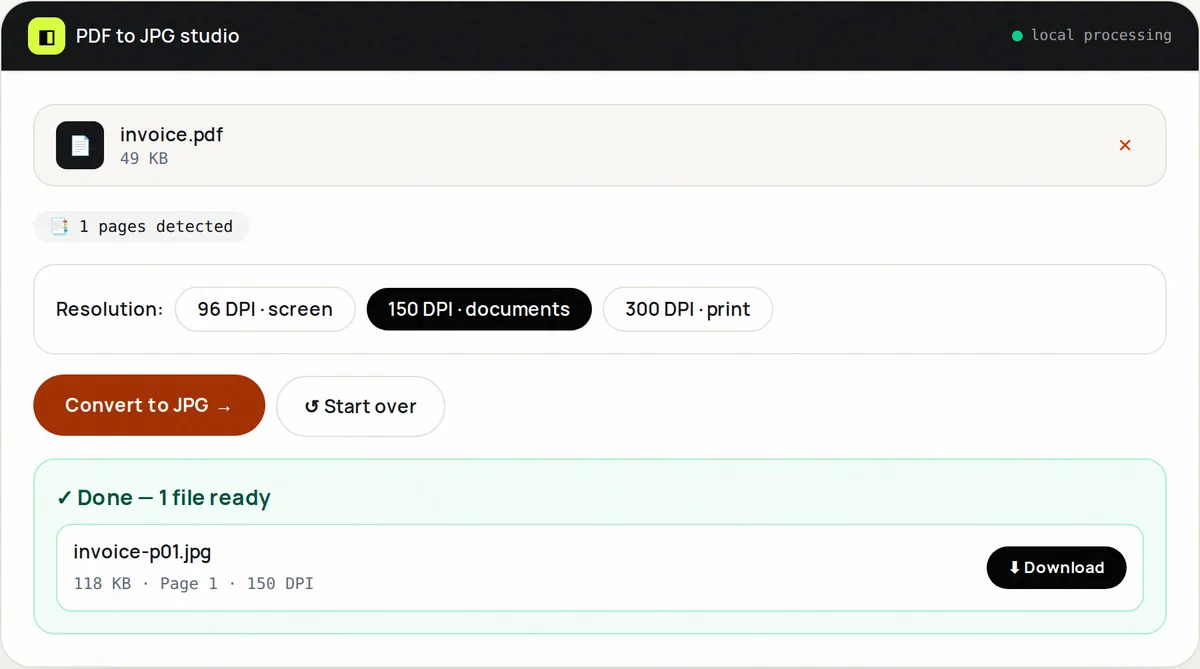
Need page 7 of a PDF as an image for slides, a thumbnail for a listing, or evidence for a ticket? PDF to JPG renders every page to a JPEG image at the resolution you choose — 96 DPI for screens, 150 DPI for documents, 300 DPI for print — right in your browser.
Rendering uses Mozilla's pdf.js, the same engine behind Firefox's viewer, so fonts, vector diagrams and transparency are drawn accurately onto a white background. Each page appears in the results list as it is rendered; download the ones you need individually or everything as a ZIP named after the source file.
JPG is the right choice when file size matters more than pixel-perfect edges: photos inside PDFs, slide decks, social posts. For the sharpest text and logos, use PDF to PNG instead — PNG is lossless.
How to use PDF to JPG, step by step
- Upload one PDF. Page count is detected automatically.
- Pick a resolution: 96 DPI (screen), 150 DPI (documents) or 300 DPI (print).
- Click Convert. Pages are rendered one after another and added to the results list.
- Download individual JPGs or the full ZIP archive.
- Reset to convert another document.
Supported formats & limits
- Input: PDF up to 100 MB
- Output: JPG (JPEG, sRGB) per page, quality ~92
- Resolutions: 96, 150 or 300 DPI (an A4 page at 150 DPI is about 1240 × 1754 pixels)
- Need transparency or lossless? Use PDF to PNG
Key features
Resolution control
96 DPI for small files, 300 DPI for print — you choose the size/quality trade-off.
Page-by-page results
Each page appears as soon as it is rendered, with its file size.
Selective download
Grab page 7 alone or the whole ZIP — no forced bundles.
Faithful rendering
pdf.js handles complex fonts, gradients and vector charts correctly.
Private rendering
Pages rasterize on your GPU/CPU; nothing is sent to a render farm.
Smart naming
doc-p01.jpg, doc-p02.jpg — sorts correctly everywhere.
Privacy promise
Your files never leave this tab.
This tool processes your file with JavaScript libraries (pdf-lib, pdf.js, Canvas) running in your own browser. The file is not sent to our server, and nothing is kept after you close or reset the page. That makes it a sensible choice for contracts, IDs and other private documents.
Common use cases
Slide decks
Drop PDF charts into Keynote/PowerPoint as images.
E-commerce
Turn lookbook pages into listing photos.
Support tickets
Attach a single page as evidence instead of a 40 MB PDF.
Social teasers
Post report pages as carousel images.
Thumbnails
Generate cover previews for document libraries.
Tips for best results
- 150 DPI is a good balance: sharp on most screens and still small enough to email.
- Rendering hundreds of pages at 300 DPI is heavy on phones — extract the pages you need first.
- For text-heavy pages destined for print, prefer PNG.
- ZIP names inherit the PDF name — rename the PDF first for clean asset names.
- Dark PDFs? JPG flattens transparency onto white — check the preview.
Common mistakes to avoid
- Choosing 300 DPI for 100 pages on a phone and running out of memory — use a lower DPI or split first.
- Expecting selectable text in JPGs — they're pictures; keep the PDF too.
- Uploading an encrypted PDF — unlock it first.
- Printing 96 DPI images — use 300 DPI for anything that will be printed.
Learn more
- JPG vs PNG vs WebP vs AVIF: which image format should you use? — How JPEG, PNG, WebP, AVIF and GIF compress, when transparency matters, browser support, and which to pick for photos, screenshots and logos.
Frequently asked questions
+How do I convert a PDF to JPG?
Upload the PDF, pick a resolution, click Convert, then download JPGs individually or as a ZIP.
+What resolution should I pick?
96 DPI for web and social posts, 150 DPI for documents and slides, 300 DPI for print. Higher DPI means larger files.
+Can I convert just one page?
Yes — convert, then download only that page's JPG from the thumbnail grid.
+JPG or PNG — which is better?
JPG for photos and small files; PNG for sharp text, logos and transparency.
+Are my PDFs uploaded?
No — rendering happens locally with pdf.js in your browser.
+Why do some fonts look slightly different?
Some PDFs do not embed their fonts; the renderer then substitutes the closest available font. PDFs with embedded fonts render as designed.