
What Image Compress does — and when to use it
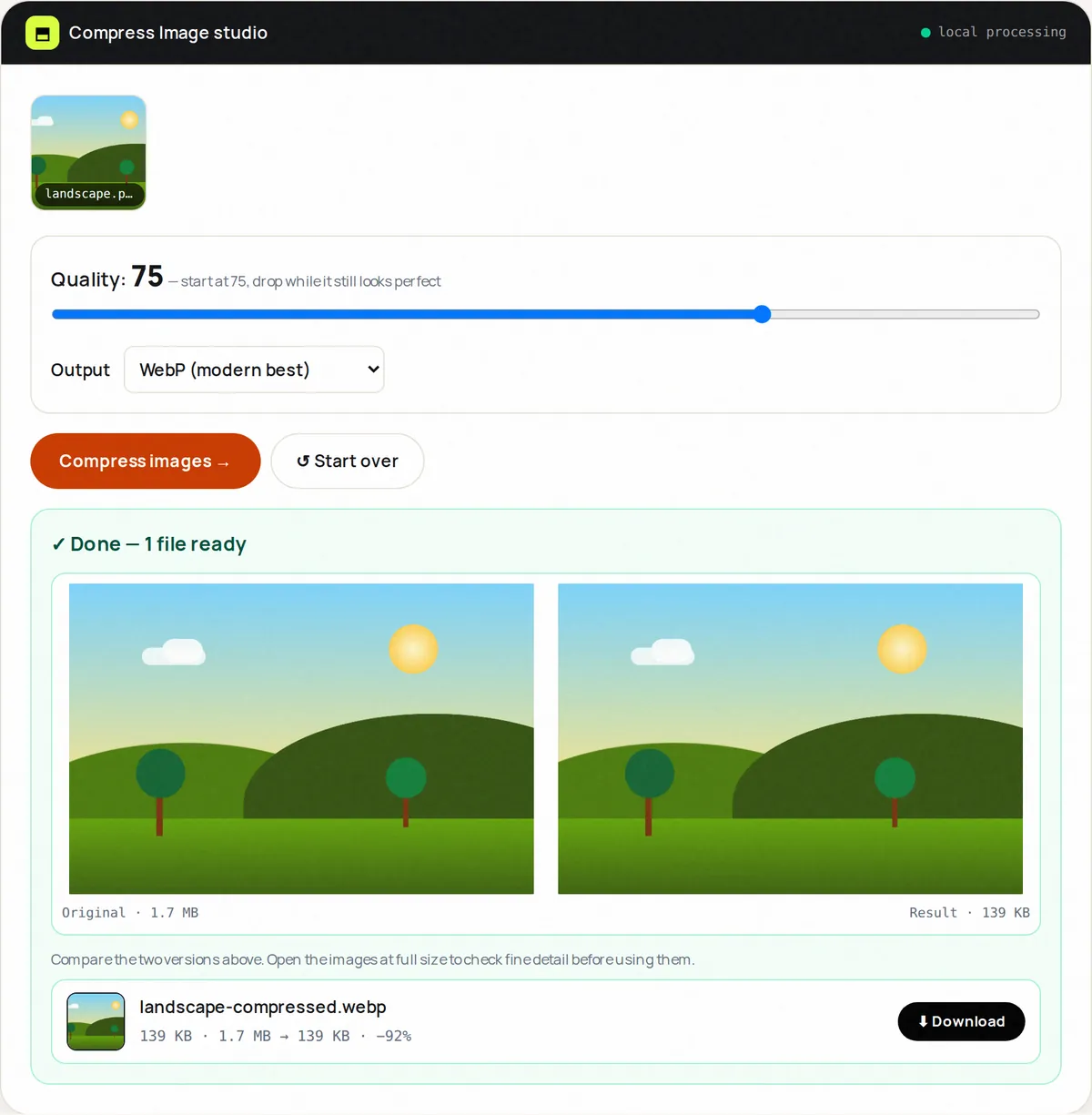
Images are typically the heaviest part of a web page, and photos straight from a phone are many times larger than they need to be. Image Compress re-saves JPG, PNG, WebP and other images with a quality slider (10–100) and a choice of output format, then shows the original and the result side by side — photos often end up 60–90% smaller with little visible difference at quality 70–80.
The compressor redraws each image in your browser, limits the longest side to 2600 pixels (plenty for web use, but resize separately if you need the full resolution), and fills transparent areas with white for JPG. For every file you see the original and compressed sizes, the percentage saved and a side-by-side comparison. If an image is already as small as it can get in the chosen format, you get the original back.
It is a quick last step before publishing a blog post, a product listing or a portfolio. As a typical example, a 4 MB phone photo saved at quality 75 often ends up a few hundred kilobytes.
How to use Image Compress, step by step
- Upload up to 5 images.
- Set the quality slider (start at 75) and pick the output format.
- Click Compress.
- Compare the original and result side by side, and check the savings for each file.
- Download individually or all together as a ZIP.
Supported formats & limits
- Input: JPG, PNG, WebP, GIF, BMP or AVIF (any format your browser can open), up to 50 MB each
- Quality: 10–100 slider for JPG and WebP; output: JPG, PNG or WebP; longest side limited to 2600 px
- Output: compressed images + ZIP
- Photos also shrink via: Image Resize first
Key features
Savings readout
Original size, new size and percentage for every file.
Side-by-side comparison
Judge the result with your own eyes before you download.
Format switch
PNG → WebP often halves files instantly.
Sensible size cap
Huge photos are scaled to 2600 px on the longest side.
Batch + ZIP
Five images, one download.
On-device
Unreleased product shots stay private.
Privacy promise
Your files never leave this tab.
This tool processes your file with JavaScript libraries (pdf-lib, pdf.js, Canvas) running in your own browser. The file is not sent to our server, and nothing is kept after you close or reset the page. That makes it a sensible choice for contracts, IDs and other private documents.
Common use cases
Bloggers
Keep post images light without visible quality loss.
Online stores
Faster product pages, especially on mobile.
Portfolios
Crisp work that still loads on 4G.
Attachments that don't bounce.
Developers
Lighter assets in your repository and build.
Tips for best results
- Start at q75 for photos; drop to 60 if it still looks clean.
- PNG screenshots → WebP is the biggest free win.
- Resize to display size first, then compress.
- Open results at full size to judge — small previews hide artifacts.
- Keep originals; recompressing a compressed file degrades fast.
Common mistakes to avoid
- Compressing at q20 and wondering why skies band — stay 60+.
- Recompressing the same file five times.
- Saving transparency as JPEG (white bg surprise).
- Judging quality on a tiny preview — open full-size.
Learn more
- How to reduce PDF file size (and what actually makes PDFs big) — Why some PDFs are huge, which compression methods work for which kind of document, and how to get under email and upload limits without ruining quality.
- JPG vs PNG vs WebP vs AVIF: which image format should you use? — How JPEG, PNG, WebP, AVIF and GIF compress, when transparency matters, browser support, and which to pick for photos, screenshots and logos.
- How to optimize images for a faster website — A step-by-step workflow for resizing, compressing and converting website images, plus the HTML attributes that improve Core Web Vitals.
Frequently asked questions
+How much can images shrink?
It depends on the image. Large phone photos often shrink 60–90% at quality 70–80. Converting PNG screenshots to WebP frequently halves them. Already-optimized images may barely change.
+What quality should I use?
75 is the universal starting point; 60–70 for thumbnails, 80–85 for heroes/portfolios.
+Will transparency survive?
In PNG and WebP, yes. JPEG has no transparency — it mattes to white.
+Can I compress PNGs?
PNG is lossless, so re-saving as PNG mainly helps when the image is also scaled down. Converting to WebP (or JPG for photos) usually saves much more.
+Is there a limit?
5 images per run, 50 MB each, and the longest side is limited to 2600 pixels. Repeat runs are unlimited.
+Are files uploaded?
No — compression runs on canvas in your browser.