
What Compress PDF does — and when to use it
An email bounced because your PDF is 28 MB, or an application portal refuses anything over 5 MB. Compress PDF gives you three clearly different ways to make the file smaller, shows the exact size before and after, and never hands you a file that is bigger than the one you started with.
Lossless rewrites the PDF's internal structure — packing objects into compressed streams and dropping unused data — without changing anything you can see. Text stays selectable and links keep working. Savings are usually modest, from a few percent to around a third for files exported from office software.
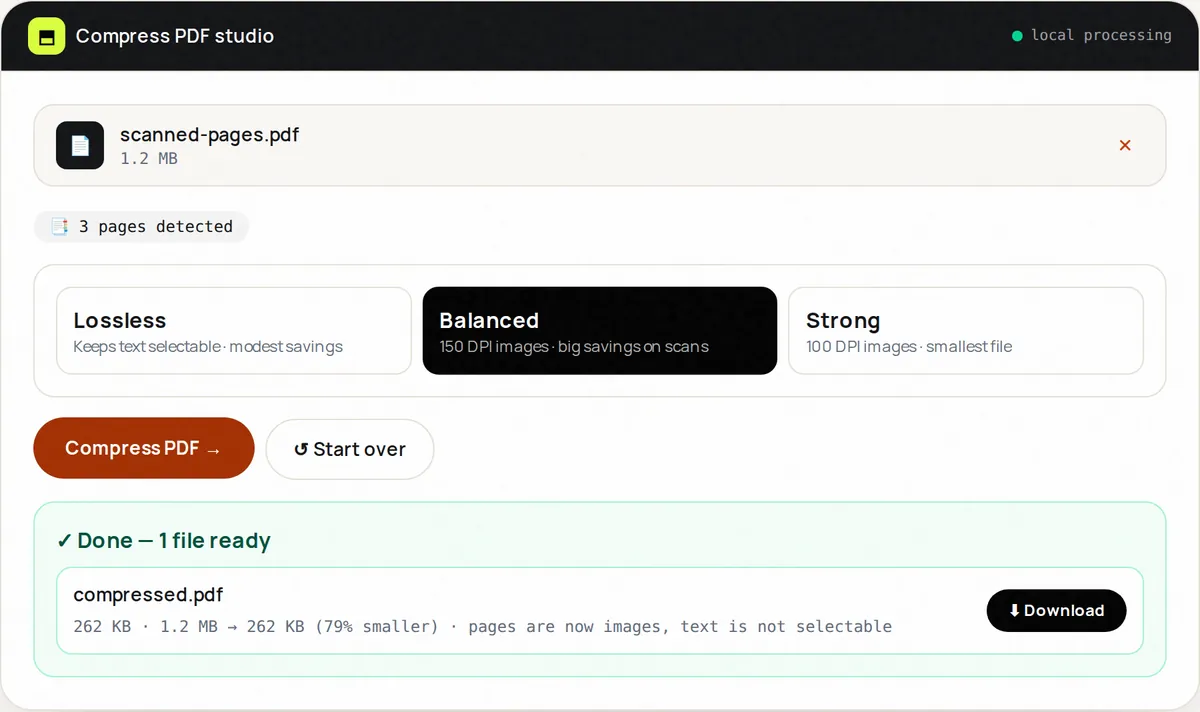
Balanced and Strong are for scans and photo-heavy documents, where nearly all the weight is pixels. They render every page as an image at 150 DPI (Balanced) or 100 DPI (Strong) with JPEG compression and build a new PDF from those images. A 600 DPI scan typically shrinks to a small fraction of its size. The trade-off: pages become pictures, so text can no longer be selected or searched, and links and form fields are removed. Our guide on reducing PDF file size explains how to choose.
How to use Compress PDF, step by step
- Upload one PDF (up to 100 MB).
- Choose a level: Lossless (keeps text), Balanced (150 DPI images) or Strong (100 DPI images).
- Click Compress. For Balanced and Strong, progress is shown page by page.
- Compare the before and after sizes. If the result would not be smaller, the tool returns your original and tells you so.
- Open the result and zoom in on the smallest text before you send it. Still too big? Try the next level, or split the file.
Supported formats & limits
- Input: one PDF up to 100 MB
- Lossless: object streams + removal of unused objects; text, links and fonts unchanged
- Balanced: every page re-encoded as a 150 DPI JPEG image
- Strong: every page re-encoded as a 100 DPI JPEG image
- Output: PDF with the same page count and page sizes
Key features
Three distinct levels
One lossless option and two image-based options, each described plainly so you know what you are trading.
Exact before/after size
Byte counts and the percentage saved for every run.
Never bigger
If a level cannot make the file smaller, you get your original back instead of a larger file.
Big savings on scans
Image-based levels shrink high-resolution scans dramatically.
Page sizes preserved
Image-based levels keep each page's original dimensions and orientation.
Private
Pages are rendered and re-encoded on your device; nothing is uploaded.
Privacy promise
Your files never leave this tab.
This tool processes your file with JavaScript libraries (pdf-lib, pdf.js, Canvas) running in your own browser. The file is not sent to our server, and nothing is kept after you close or reset the page. That makes it a sensible choice for contracts, IDs and other private documents.
Common use cases
Email attachments
Get a scanned contract under the 20–25 MB limit of most email services.
Application portals
Meet strict 2–5 MB per-file limits for job, visa and university uploads.
Scanned paperwork
Turn 600 DPI copier scans into reasonably sized files.
Archiving
Reduce storage for old statements you only need to read on screen.
Slow connections
Make handouts quicker to download on mobile data.
Tips for best results
- Try Lossless first — if it gets under your limit, nothing is lost.
- For text documents you will edit or search later, stay with Lossless and split the file if it is too big.
- Balanced is the right choice for most scans; Strong is for when every kilobyte counts.
- Compress once, from the original. Compressing a compressed file again saves little and loses detail.
- Merge first, then compress the finished bundle.
Common mistakes to avoid
- Using Balanced or Strong on a document that must stay searchable or accessible to screen readers.
- Compressing a digitally signed PDF — any change invalidates the signature.
- Deleting the original after compressing; image-based compression cannot be undone.
- Sending the result without checking that small print is still readable.
Learn more
- How to reduce PDF file size (and what actually makes PDFs big) — Why some PDFs are huge, which compression methods work for which kind of document, and how to get under email and upload limits without ruining quality.
- How to scan documents with your phone and get a clean PDF — Lighting, framing and settings that make phone photos of documents look like real scans, and how to combine them into one small PDF.
Frequently asked questions
+How much smaller will my PDF get?
It depends on what is inside. Lossless typically saves a few percent to about a third. On scans and photo-heavy files, Balanced and Strong often reduce the size by 60–90%.
+Will the text still be selectable?
With Lossless, yes. With Balanced and Strong, no — every page becomes an image, so text cannot be selected or searched.
+Why did Lossless barely change my file?
Most of its size is image data that is already compressed. Only re-encoding the images (Balanced or Strong) can shrink it substantially.
+Why did I get my original file back?
Because the chosen level would have produced a file the same size or larger. This happens with already-optimized PDFs; try a stronger level.
+Is there a file-size limit?
100 MB per file. Image-based levels on long documents use a lot of memory, so they are faster on a computer than on a phone.
+Are my files uploaded?
No. Rendering, compression and rebuilding all happen in your browser.