
What Split PDF does — and when to use it
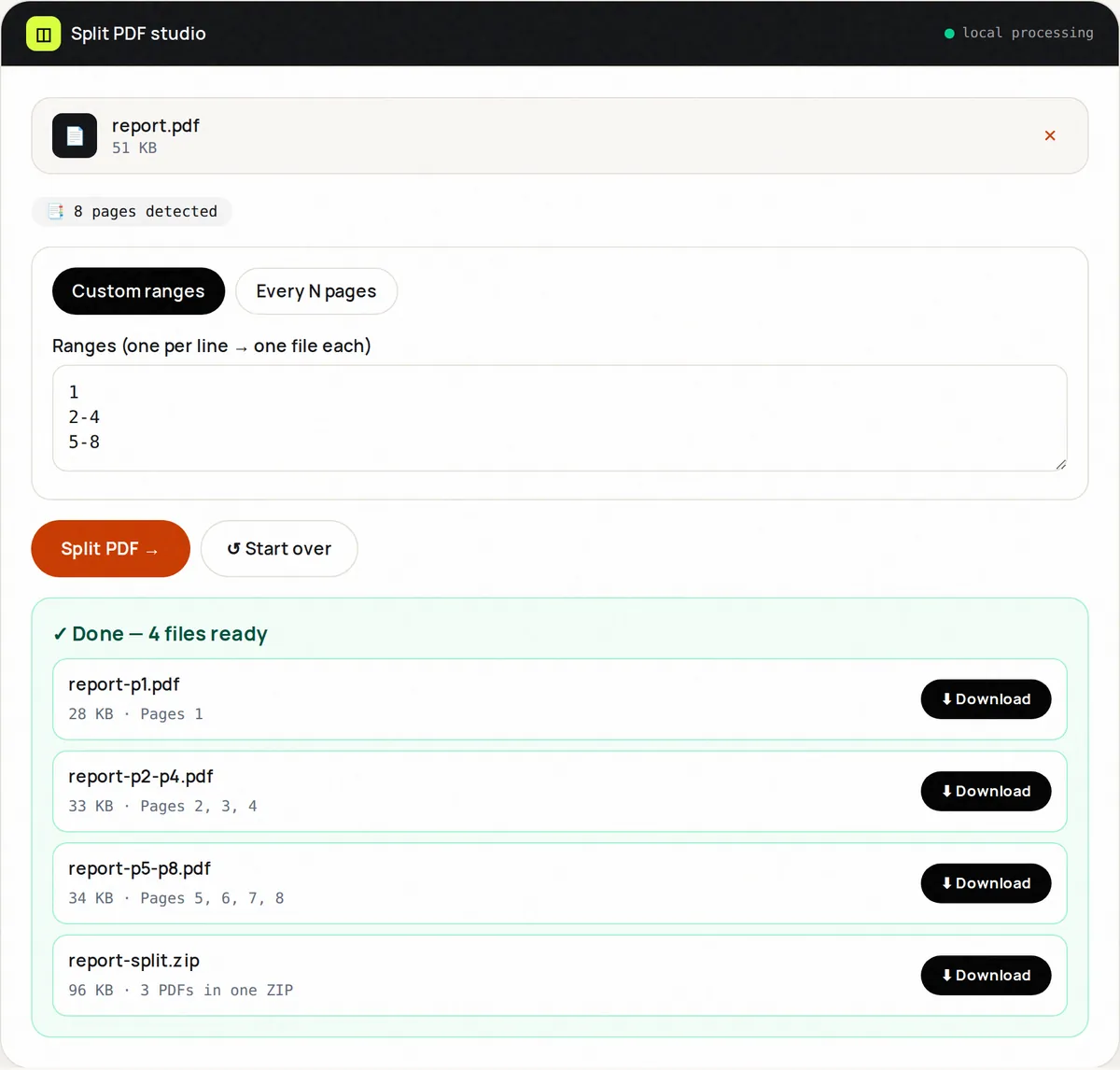
Large PDFs are unwieldy: a 200-page manual when you only need chapter 4, a bank export with five years when your accountant asked for one. Split PDF lets you carve exactly what you need — either by typing one range per output file (for example 1-3 on one line and 8-10 on the next), or by bursting every N pages into separate files.
The splitter reads your file locally, shows the true page count, and validates your ranges before touching a byte. Invalid ranges (page 99 of a 12-page file) produce a clear error instead of a broken download. Outputs are named after the source and pages — report-p1-p3.pdf — so you can tell the parts apart.
Because splitting copies vector pages, each slice keeps crisp text, embedded fonts and hyperlinks.
How to use Split PDF, step by step
- Upload one PDF. The tool reads and displays its exact page count within a second.
- Choose a mode: Custom ranges or Fixed size (every N pages).
- Type one part per line (or separate parts with ;). Within a part, use commas and hyphens — 1-3, 5 puts pages 1, 2, 3 and 5 in the same file. Out-of-range page numbers are reported before anything is processed.
- Click Split. Each slice renders with its page list and size so you can verify.
- Download slices individually or all as a ZIP. Reset to split another file.
Supported formats & limits
- Input: single PDF up to 100 MB
- Ranges syntax: one output file per line or per ; — each part can combine pages and ranges, e.g. 1-3, 5
- Output: one PDF per slice, plus optional ZIP bundle
- Tip: combine with Extract Pages when you need one new file instead of many
Key features
Two split modes
Custom ranges for surgical cuts; fixed-size chunks for even bursting.
Range validation
Out-of-range pages are reported before processing, with the valid 1–N range shown.
Smart filenames
Slices inherit the source name plus page info — no more untitled-47.pdf chaos.
ZIP everything
Ten slices become one tidy download for email or Drive.
Vector-safe
Text and links survive the cut; nothing is rasterized.
Works on scans
Scanned PDFs split exactly like text PDFs.
Privacy promise
Your files never leave this tab.
This tool processes your file with JavaScript libraries (pdf-lib, pdf.js, Canvas) running in your own browser. The file is not sent to our server, and nothing is kept after you close or reset the page. That makes it a sensible choice for contracts, IDs and other private documents.
Common use cases
Accountants & audits
Send only FY2025 from a multi-year export.
Teachers
Split a workbook into per-chapter handouts.
HR
Separate a 50-CV bundle into individual applications.
Print shops
Chunk a book into signatures for binding.
Legal discovery
Produce only responsive pages as separate exhibits.
Tips for best results
- Use fixed-size mode to burst a scanned stack of receipts into one file per receipt.
- Set “pages per file” to 1 to get every page as its own PDF.
- Check the slice list before downloading — a typo like 1-30 vs 1-3 is easy to catch visually.
- If a part is still too large to send, run it through Compress PDF.
- Keep a _full original so you can re-slice if the recipient asks for different pages.
Common mistakes to avoid
- Typing 0 as a page — pages start at 1, and the validator will tell you.
- Splitting an encrypted PDF without unlocking it first.
- Downloading only some slices then closing the tab — download the ZIP to be safe.
- Assuming form fields survive — flatten forms by printing to PDF before splitting complex forms.
Learn more
- How to reduce PDF file size (and what actually makes PDFs big) — Why some PDFs are huge, which compression methods work for which kind of document, and how to get under email and upload limits without ruining quality.
- How to merge, split and reorganize PDF pages without losing quality — When to merge, split, extract, delete, reorder or rotate PDF pages for application packs, reports and scans — without losing text quality.
Frequently asked questions
+How do I split specific pages out of a PDF?
Upload, choose Custom ranges, type one range per line — for example 1-3, then 7, then 10-12 on separate lines — and click Split. Each line becomes its own PDF.
+Can I split every page into its own PDF?
Yes — choose fixed size and set N to 1. A 20-page file yields 20 one-page PDFs plus a ZIP.
+Is there a page limit?
No hard page limit; the 100 MB file cap is the practical constraint. Thousand-page text PDFs split fine.
+Do I lose quality?
No. Pages are copied losslessly — identical content, just fewer pages per file.
+Can I split and merge in one step?
Split first, then feed the slices into Merge PDF in any order — a classic extract-and-reassemble workflow.
+My ranges keep failing — why?
Usually a page beyond the page count or a typo like 3--5. The error message tells you what to fix.