
What Delete PDF Pages does — and when to use it
Every long PDF hides dead weight: blank scan backs, duplicate exports, draft pages, a cover you don't need, sensitive pages that must not ship. Delete PDF Pages removes them surgically — pick from a thumbnail grid or type ranges — and hands you a clean file with the originals renumbered.
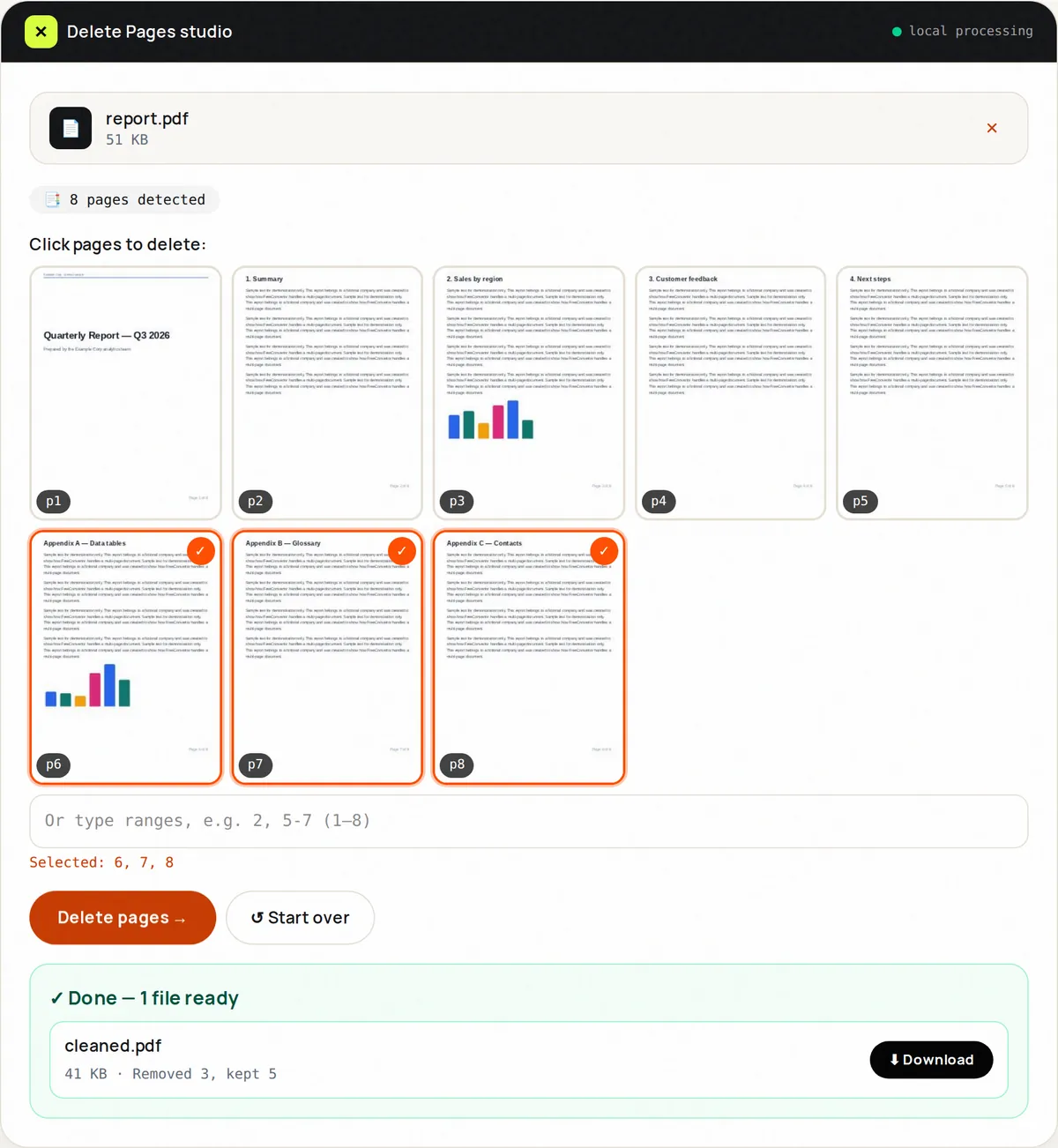
The first 40 pages are shown as thumbnails so you can see exactly what you are deleting; for later pages, type the numbers. Prefer typing? Ranges like 1, 5-7 work too, with a guardrail that refuses to delete every page.
Deletion is non-destructive to your source: the original file on disk is untouched; only the downloaded copy drops pages. Keep the original until recipients confirm.
How to use Delete PDF Pages, step by step
- Upload one PDF. Thumbnails render for visual selection.
- Click thumbnails to mark for deletion, or type ranges (e.g. 2, 5-7).
- Check the “Selected” list under the thumbnails.
- Click Delete pages and download the cleaned PDF.
- Verify pagination, then reset.
Supported formats & limits
- Input: PDF up to 100 MB
- Selection: thumbnail clicks and/or range syntax
- Guardrail: at least one page must remain
- Need the opposite? Extract Pages keeps only what you pick
Key features
Visual grid
See blank and duplicate pages instead of guessing numbers.
Dual input
Click pages or type ranges — mix both freely.
Selection list
The pages you have marked are listed so you can double-check before deleting.
Safety lock
Refuses to delete all pages with a clear explanation.
Vector-safe
Remaining pages keep text, links and quality.
Original untouched
Click a page again to deselect it; your original file is never changed.
Privacy promise
Your files never leave this tab.
This tool processes your file with JavaScript libraries (pdf-lib, pdf.js, Canvas) running in your own browser. The file is not sent to our server, and nothing is kept after you close or reset the page. That makes it a sensible choice for contracts, IDs and other private documents.
Common use cases
De-blanking scans
Drop the white backs every duplex scan adds.
De-duplicating
Remove the twice-exported chapter.
Removing annexes
Leave out pages the recipient should not receive.
Trimming decks
Cut appendix slides for the short meeting.
Cleaning exports
Remove cover/TOC pages added by generators.
Tips for best results
- Render check: zoom a thumbnail before deleting near-duplicates.
- Delete in one pass — five small passes waste time.
- Deleting a page removes it completely, but it does not redact text on the pages you keep.
- Combine with Compress after trimming for the smallest shareable file.
- Keep a _full archive copy with a clear name.
Common mistakes to avoid
- Deleting by number without looking — page 7 isn't always what you remember.
- Trying to delete all pages — keep at least one.
- Shipping without opening the result once.
- Assuming deletion redacts burned-in text securely — use proper redaction for legal needs.
Learn more
- How to password-protect a PDF — and what PDF encryption really protects — Open vs permission passwords, why AES-256 matters, how to choose and share a password safely, and what a PDF password cannot do.
- How to merge, split and reorganize PDF pages without losing quality — When to merge, split, extract, delete, reorder or rotate PDF pages for application packs, reports and scans — without losing text quality.
Frequently asked questions
+How do I delete pages from a PDF?
Upload, click the pages to remove (or type ranges), click Delete, download.
+Can I see the pages before deleting?
Yes — the first 40 pages are shown as thumbnails. For longer documents, type the page numbers of later pages.
+Can I delete all pages?
No — a PDF needs at least one page. Use Extract to build smaller files instead.
+Is the original changed?
No. Your source file is untouched; only the download drops pages.
+Does this reduce file size?
Yes, proportionally — fewer pages, fewer bytes. Compress after for more.
+Can I undo after downloading?
Re-upload the original (kept on your disk) and re-select — nothing is stored server-side to recover.