
Adding a password is the simplest way to keep a PDF private when it travels by email, cloud link or USB stick. Done well, it means a lost laptop or a mis-addressed email exposes nothing. Done badly — weak password, password in the same email, or the wrong kind of password — it gives a false sense of security.
Two kinds of PDF password
The PDF standard defines two passwords that are often confused:
- The open password (also called the user or document-open password). Without it the file cannot be opened at all, because its contents are encrypted. This is the one that actually protects confidentiality.
- The permissions password (owner password). It lets the document be opened by anyone but asks the reader software to restrict printing, copying or editing. These restrictions are honoured by well-behaved readers but are easy to bypass with other tools, so they should be treated as a polite request, not security.
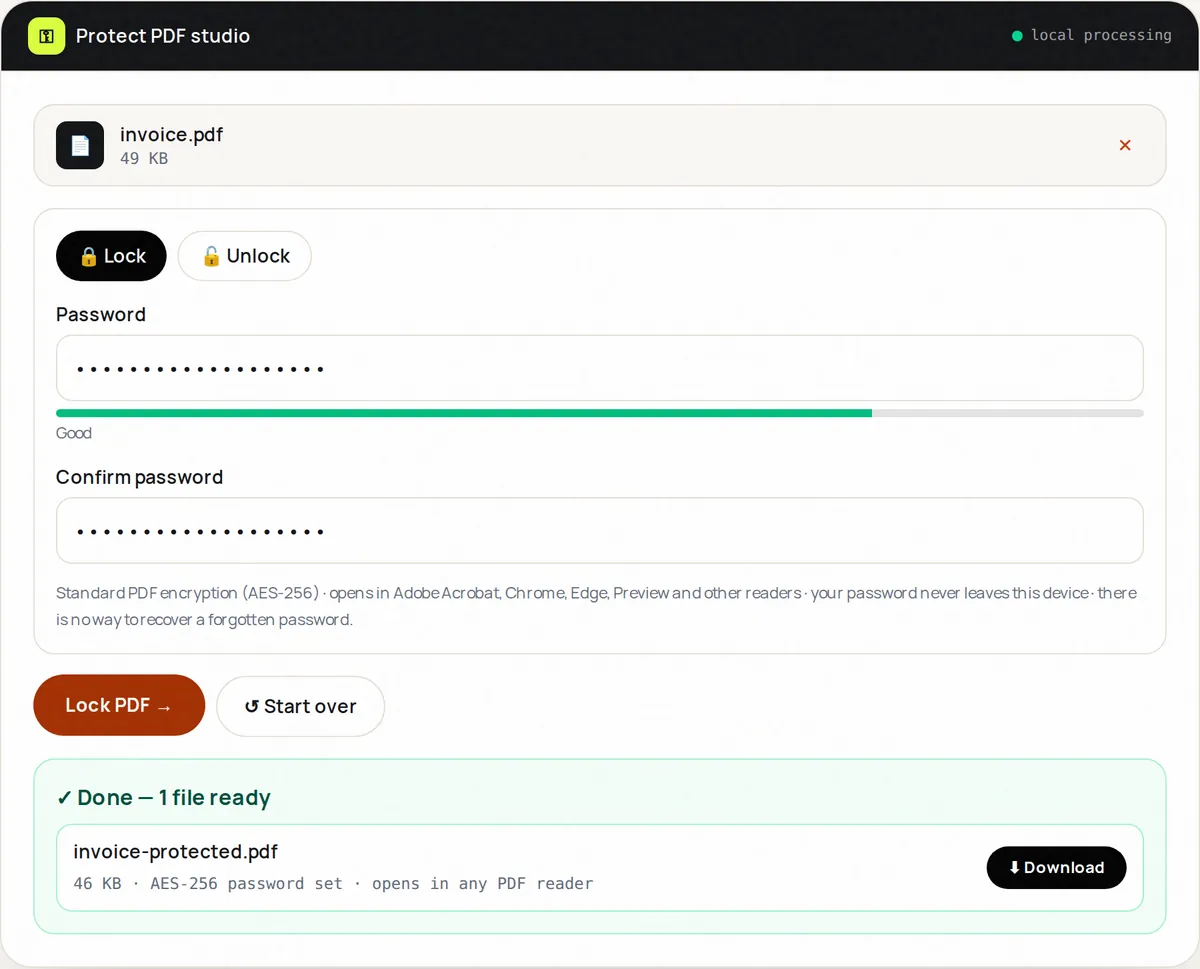
FreeConvertor's Protect PDF sets an open password. Anyone who has the password can open, print and copy the document normally; anyone without it sees nothing.
Why the encryption algorithm matters
Older PDF encryption used the RC4 cipher with 40-bit or 128-bit keys, which is considered broken today. Modern PDFs use AES. The strongest option, AES-256 (defined in the PDF 2.0 standard, ISO 32000-2), is supported by Adobe Acrobat and Reader, the built-in viewers in Chrome, Edge and Firefox, macOS Preview, and most current mobile apps. Protect PDF uses AES-256. Only very old PDF software, from before roughly 2010, may be unable to open such files.
With strong encryption, the weak point is the password itself. Attackers who obtain an encrypted file try huge numbers of guesses offline, so a short or common password can fall quickly no matter which cipher is used.
How to add a password with FreeConvertor
- Open Protect PDF and choose your PDF. It is read by your browser; it is not uploaded.
- Make sure "Lock" is selected, then type a password and type it again to confirm.
- Click Lock PDF and download the protected copy.
- Open the downloaded file in your usual PDF reader to confirm it asks for the password before you send it.
Choosing a strong password
- Length matters most. A passphrase of four or five unrelated words (for example, a random combination of everyday words) is both strong and easy to type.
- Avoid names, dates, the recipient's details or anything printed in the document itself.
- Use a different password for each document or recipient, so one leak does not unlock everything.
- Store it in a password manager. There is no way to recover a forgotten PDF password — not for us, and not for anyone else.
Sharing the password safely
Never put the password in the same email as the attachment: anyone who can read the email gets both. Send it through a different channel — a text message, a phone call, a messaging app, or a password manager's secure sharing feature. For recurring exchanges, agree on a password in person once.
What a password does not do
- It does not redact. Once someone opens the file with the password, they can see everything in it. Remove pages you should not share with Delete PDF Pages first, and use dedicated redaction software for blacking out text.
- It does not stop copying after opening. A recipient with the password can save, print or screenshot the content.
- It does not prove who sent the file or that it was not changed. That is the job of digital signatures, which are a separate feature.
Removing a password you know
If you receive password-protected statements or payslips and want an unlocked copy for your own archive, open Protect PDF, switch to "Unlock", choose the file and enter its current password. The tool saves a copy without encryption. It cannot remove a password you do not know, and you should only unlock files you are entitled to open.
Frequently asked questions
Will the recipient need special software?
No. Protect PDF uses the standard PDF encryption method, so Adobe Reader, browser PDF viewers, macOS Preview and most phone apps will ask for the password and open the file.
Can FreeConvertor recover a lost password?
No. The password never leaves your device and is not stored anywhere. Keep it in a password manager.
Is the permissions password useful at all?
It discourages casual printing or editing in compliant readers, but it is easy to bypass and does not encrypt access. For confidentiality, always use an open password.