
What PNG to PDF does — and when to use it
Screenshots, Dribbble shots, diagrams and memes — PNG to PDF binds them into a single polished document with layout controls borrowed from our JPG pipeline: Fit, A4 or Letter, portrait or landscape, adjustable margins.
PNGs embed losslessly, so interface text and line art survive the trip. This makes the tool ideal for design reviews (ten screens, one PDF), bug reports (annotated screenshots in order), and course handouts assembled from exported slides.
Working with camera photos instead? JPG to PDF produces smaller files. Mixing formats? Image to PDF takes everything at once.
How to use PNG to PDF, step by step
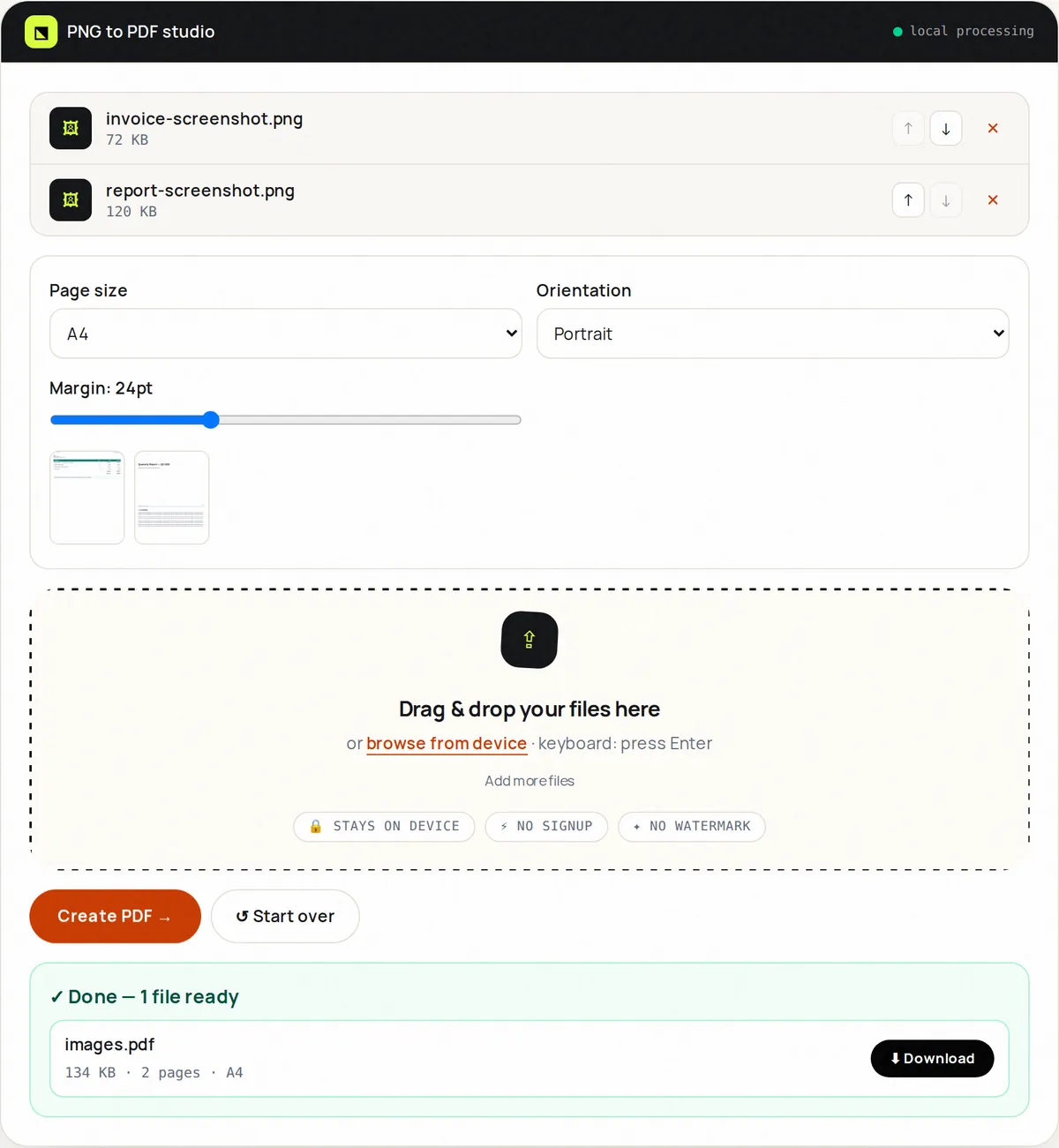
- Upload up to 20 PNG files.
- Set the order with the ↑ ↓ buttons.
- Set page size, orientation and margins.
- Click Create PDF and download.
- Chain with Merge PDF for albums beyond 20 pages.
Supported formats & limits
- Input: PNG up to 50 MB (20 files)
- Layout: Fit / A4 / Letter, portrait/landscape, margin slider
- Output: PDF, one PNG per page
- Mixed JPG+PNG+WebP? Use Image to PDF
Key features
Lossless PNG embedding
Interface pixels arrive intact — no JPEG smearing.
Print-aware layouts
A4/Letter presets with real point dimensions.
Margin control
From edge-to-edge to gallery breathing room.
Choose the order
The PDF follows the order of the file list.
Fast builds
Twenty screenshots become a PDF in seconds.
Private
Screenshots of unreleased work never upload.
Privacy promise
Your files never leave this tab.
This tool processes your file with JavaScript libraries (pdf-lib, pdf.js, Canvas) running in your own browser. The file is not sent to our server, and nothing is kept after you close or reset the page. That makes it a sensible choice for contracts, IDs and other private documents.
Common use cases
Design reviews
One PDF of screens per sprint, annotated in any reader.
Bug reports
Ordered repro screenshots developers actually read.
Tutorials
Step-by-step captures as a printable handout.
Moodboards
A shareable board without Figma access.
Receipts
Screenshot receipts into one expense PDF.
Tips for best results
- Retina screenshots are huge — Image Compress them first if the PDF must email.
- Use A4 portrait for reading on tablets.
- Number files 01–20 before upload so they start in the right order.
- Fit mode preserves every pixel; A4 normalizes for print.
- Dark-mode screenshots print badly — consider light mode for handouts.
Common mistakes to avoid
- Feeding 4K screenshots and expecting a 1 MB PDF — pixels weigh bytes.
- Mixing JPGs renamed as .png — use Image to PDF for mixed sets.
- Zero margins on text-heavy shots — give eyes room.
- Forgetting to check order before building.
Frequently asked questions
+Can I combine PNG screenshots into one PDF?
Yes — upload up to 20, order them, pick a layout, click Create PDF.
+Will quality drop?
No visible loss — PNGs embed losslessly with aspect preserved.
+Can I mix PNG and JPG?
Use Image to PDF for mixed formats; this tool is PNG-tuned.
+What page size should I use?
Fit for pixel-exact screens, A4 for print/handouts.
+Why is my PDF so big?
Retina PNGs are heavy. Compress images first or use JPG to PDF for photos.
+Is it free?
Free, no watermark, no signup, processed locally.