
What Image Crop does — and when to use it
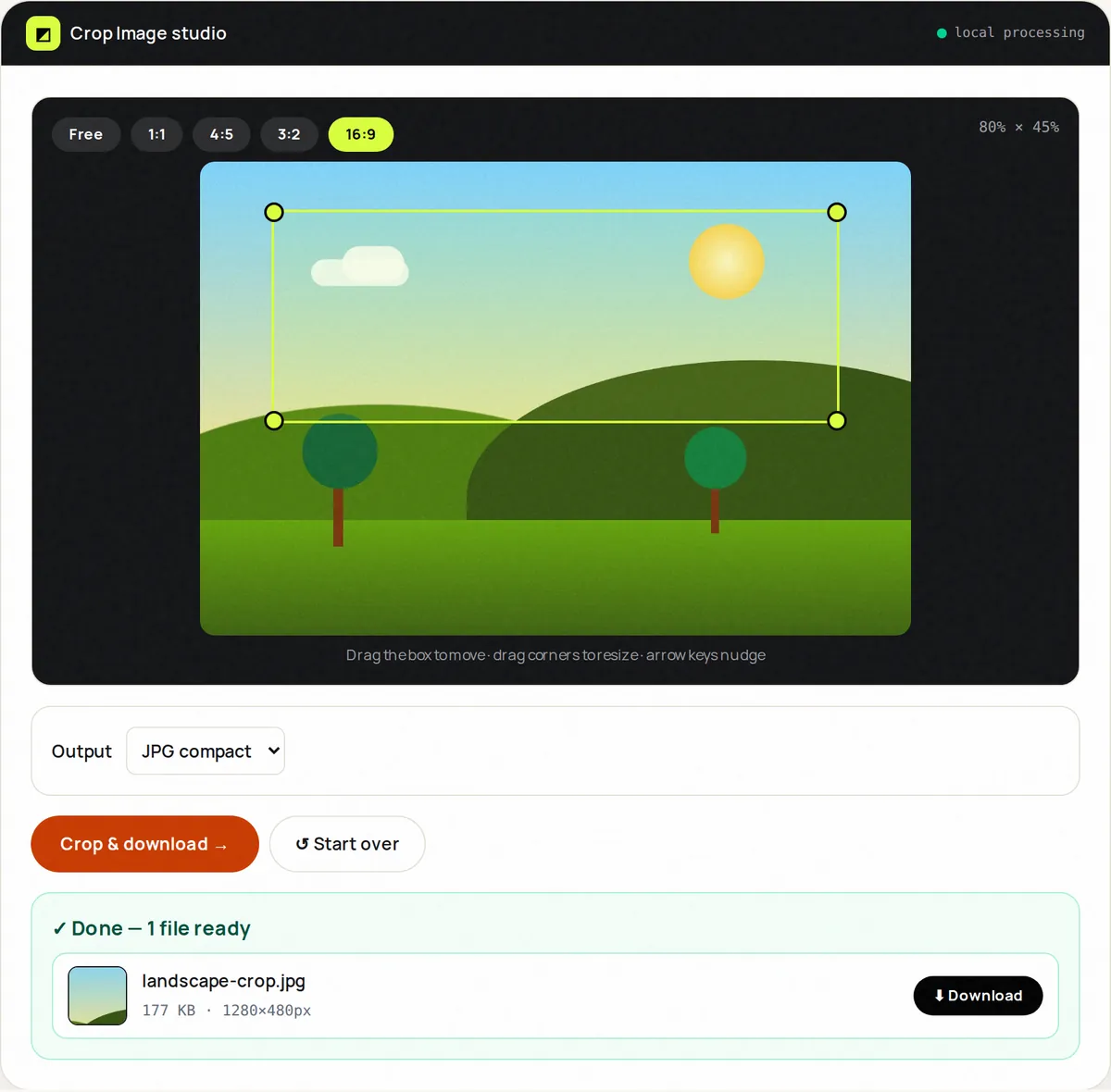
Great crops are intentional: 1:1 for feeds, 4:5 for portrait reach, 16:9 for heroes, 3:2 for print. Image Crop gives you one-tap ratio presets plus a free crop box you drag with mouse or finger over your photo.
The crop box is mapped to the image's real pixels, so what you frame is exactly what you get, and the output size in pixels is shown with the result. Export as PNG (lossless) or JPEG, then continue to Resize or Compress for delivery.
It's the fastest path from a good photo to the right photo: remove photobombers, straighten attention, meet platform ratios without guesswork.
How to use Image Crop, step by step
- Upload one image.
- Pick a preset (Free, 1:1, 4:5, 3:2, 16:9) or drag a custom box.
- Drag the box to move it and the corners to resize it; arrow keys nudge it.
- Choose PNG or JPG output.
- Click Crop & download.
Supported formats & limits
- Input: JPG, PNG, WebP, GIF, BMP up to 50 MB
- Ratios: free + 1:1, 4:5, 3:2, 16:9 presets
- Output: PNG or JPG, pixel-exact
- Then: Resize for exact px, Compress for size
Key features
Ratio presets
Platform-correct crops in one tap.
Drag + touch
Pointer-events selector works with mouse and fingers.
Exact pixels
The result lists its width × height in pixels.
Keyboard nudges
Focus the box and arrow-key it pixel by pixel.
Format choice
Lossless PNG or compact JPG.
Instant
No upload round-trip — the crop happens on your device.
Privacy promise
Your files never leave this tab.
This tool processes your file with JavaScript libraries (pdf-lib, pdf.js, Canvas) running in your own browser. The file is not sent to our server, and nothing is kept after you close or reset the page. That makes it a sensible choice for contracts, IDs and other private documents.
Common use cases
4:5 portraits that maximize feed space.
Marketplaces
Square 1:1 product shots.
Heroes
16:9 banners without awkward auto-crop.
Headshots
Tight, centered, professional.
3:2 to match lab paper.
Tips for best results
- Crop first, then resize to exact pixels — order matters.
- Leave breathing room around faces; platforms re-crop.
- On Instagram, 4:5 portrait posts take up more of the feed than 1:1 squares.
- Check edges at 100% for stray fingers/text.
- Keep the original — recropping a crop compounds.
Common mistakes to avoid
- Cropping tiny then upscaling — starts soft, ends soft.
- Ignoring ratio and letting platforms auto-crop faces.
- Exporting text-heavy crops as low-q JPG.
- Forgetting margins needed for print bleed.
Learn more
- How to scan documents with your phone and get a clean PDF — Lighting, framing and settings that make phone photos of documents look like real scans, and how to combine them into one small PDF.
- How to optimize images for a faster website — A step-by-step workflow for resizing, compressing and converting website images, plus the HTML attributes that improve Core Web Vitals.
- Favicon sizes and files you actually need — Which favicon files browsers, phones and Google Search use, the sizes that matter, the HTML to add, and how to design a legible 16 px icon.
Frequently asked questions
+How do I crop to 1:1?
Upload, tap the 1:1 preset, drag the square where you want it, export.
+Can I get exact pixels like 1080×1350?
Yes — crop at 4:5 ratio, then run through Image Resize set to 1080 width.
+Does cropping reduce file size?
Yes — fewer pixels, fewer bytes. Compress after for maximum savings.
+Can I crop multiple images?
One at a time, so you can frame each image individually.
+Is cropping destructive?
Only the download is cropped; your source file is untouched.
+Why do my crops look soft?
You cropped small then scaled up. Crop larger or start from the original.