
Images are usually the heaviest part of a web page. A single unoptimized hero photo straight from a camera can outweigh all the page's code combined, delaying the moment visitors see your content and hurting Largest Contentful Paint (LCP), one of Google's Core Web Vitals.
The fix is not one trick but a short, repeatable workflow: crop, resize, convert, compress, then mark up the image correctly in HTML. You can do the first four steps with FreeConvertor without uploading your images anywhere.
1. Crop to the shape you will display
Decide the aspect ratio of the slot the image will fill — 16:9 for a hero banner, 1:1 for a product grid, 4:5 for a portrait card — and crop to it with Image Crop. Cropping first means you never ship pixels that CSS will hide anyway, and you control the framing instead of leaving it to object-fit.
2. Resize to the size you actually need
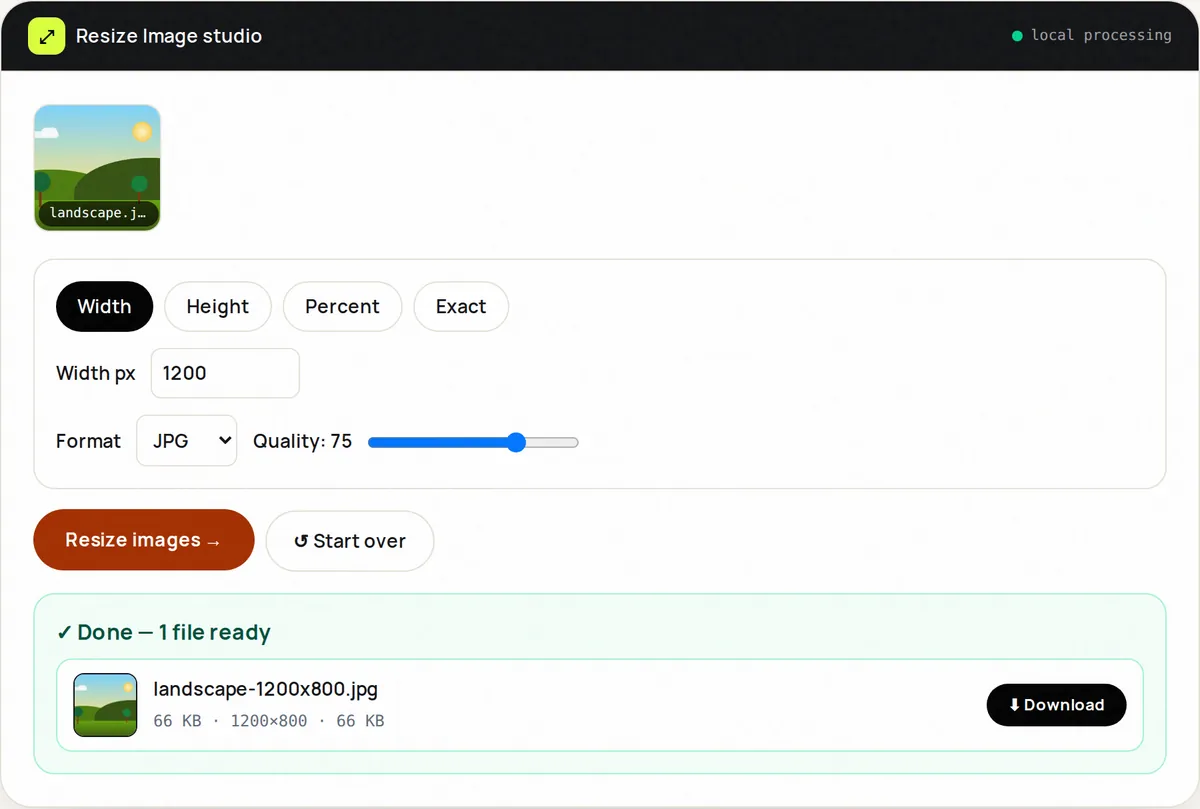
Find the largest width the image is ever shown at in your layout, then double it for high-density ("retina") screens. A content image displayed at most 800 CSS pixels wide needs to be about 1600 pixels wide; there is no visible benefit to the 4000–6000 pixel originals phones produce. Image Resize lets you set a width and keeps the aspect ratio locked.
If you can, export two or three widths (for example 800, 1200 and 1600 pixels) and let the browser choose with srcset, so phones download the small version.
3. Choose a modern format
For photos, WebP is typically a quarter to a third smaller than JPEG at the same quality and is supported by every current browser. For screenshots and graphics with flat colour, lossless WebP or PNG keeps edges sharp. WebP Converter converts JPG and PNG files in batches. See JPG vs PNG vs WebP vs AVIF for the details.
4. Compress with your eyes, not a number
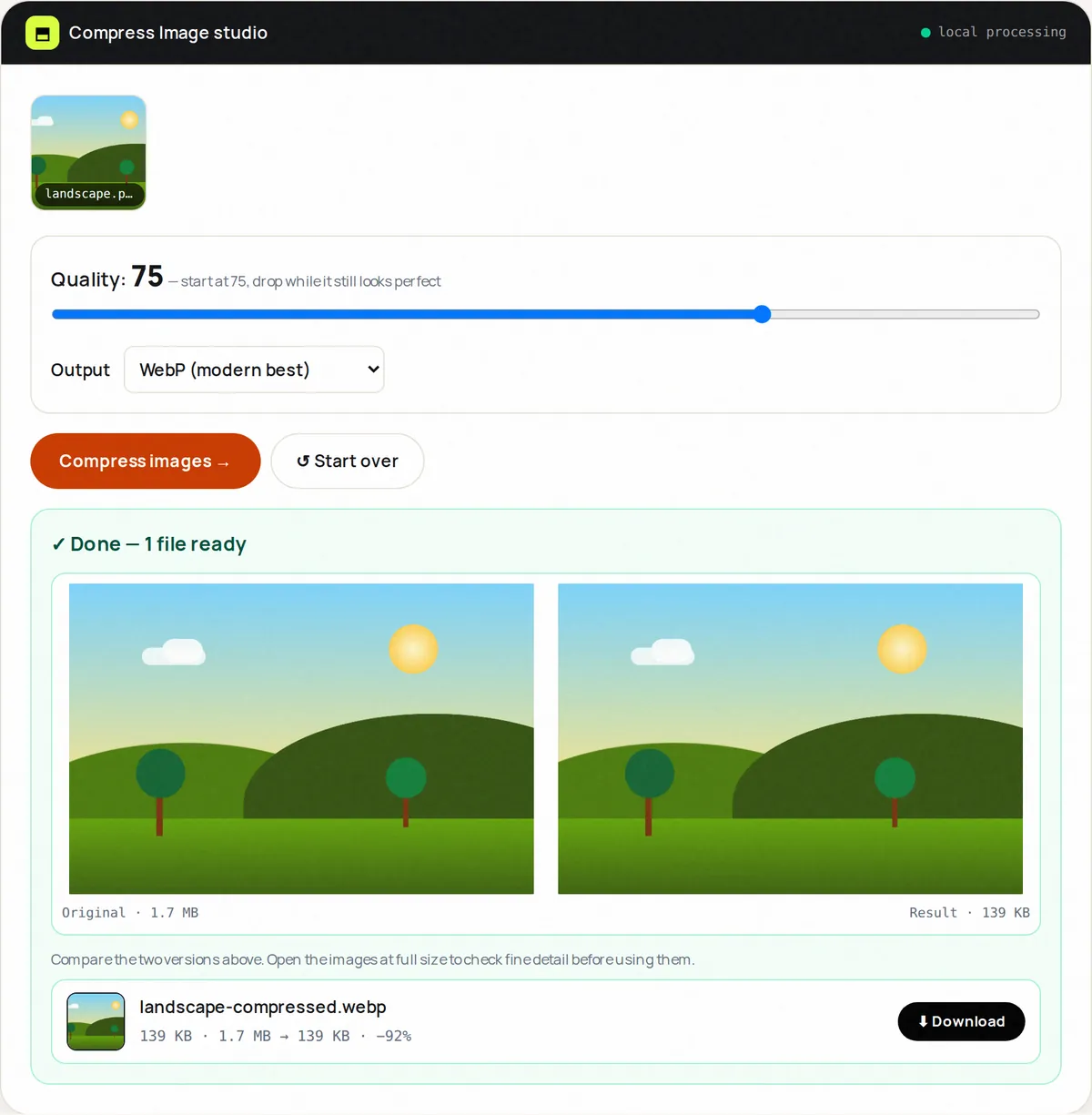
Lossy quality settings between about 70 and 85 are usually indistinguishable from the original at normal viewing size. Image Compress shows the original and the result side by side so you can lower the quality until you notice a difference, then step back up a little. Faces, skies and smooth gradients show artifacts first; check those areas.
As a rough target, most content images can be under 200 KB and large hero images under 300–400 KB after resizing and compression. Treat those as starting points, not rules.
5. Mark the image up correctly
- Always set width and height attributes (or a CSS aspect-ratio). The browser can then reserve space before the image loads, preventing layout shift (CLS).
- Add loading="lazy" to images below the fold so they load only when the visitor scrolls near them.
- Do not lazy-load the main image at the top of the page. It is often the LCP element; load it normally, and consider fetchpriority="high".
- Write meaningful alt text that describes what the image shows, for screen-reader users and search engines. Decorative images can use an empty alt="".
- Serve images with long cache lifetimes and change the file name when the image changes.
6. Measure the result
Run the page through PageSpeed Insights or the Lighthouse panel in Chrome's developer tools before and after. Look at the LCP time and at the "properly size images" and "serve images in next-gen formats" suggestions; after this workflow they should be gone or much smaller.
Frequently asked questions
What is the best image size for a website?
There is no single size. Use the largest width the image is displayed at, multiplied by two for high-density screens, and provide smaller versions with srcset for phones.
Should I convert all my images to WebP?
For images displayed on your website, WebP is a good default. Keep JPEG or PNG originals for editing, email and systems that do not accept WebP.
Does image compression affect SEO?
Indirectly. Smaller images make pages load faster, which improves user experience and Core Web Vitals. Descriptive file names and alt text help search engines understand images.