
What Image Resize does — and when to use it
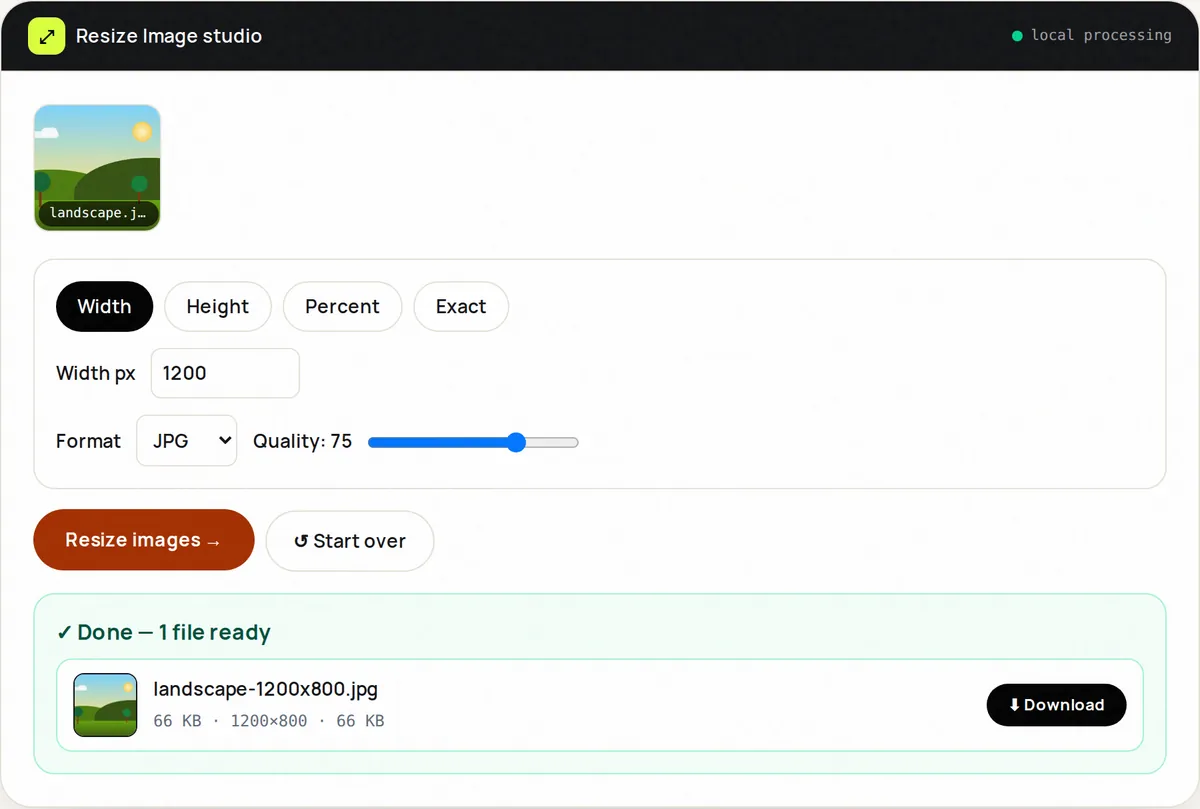
Oversized images slow pages, bounce emails and get rejected by portals — yet most “resizers” either blur, stretch or watermark. Image Resize scales by width, height or percentage with the aspect ratio kept automatically, or to exact width × height dimensions, using high-quality smoothing.
Everything runs on canvas in your browser: a 6000px photo becomes a 1200px web image in moments, with a choice of JPG, PNG or WebP output and a quality setting. Camera orientation is applied, transparency is kept in PNG and WebP, and transparent areas become white in JPG.
Use it for Shopify product shots at 2048px, hero images at 1920px, avatars at 256px, or batch-consistent social crops. Pair with Image Compress afterwards for the smallest fast-loading files.
How to use Image Resize, step by step
- Upload up to 5 images. Dimensions display instantly.
- Choose a mode: Width or Height (the other side scales to match), Percent, or Exact W×H.
- Pick the output format and, for JPG or WebP, the quality.
- Click Resize. Each result shows new dimensions and size.
- Download individually or as ZIP; reset for the next set.
Supported formats & limits
- Input: JPG, PNG, WebP, GIF, BMP or AVIF (any format your browser can open), up to 50 MB each
- Modes: by width / height / percent / exact pixels
- Output: JPEG / PNG / WebP at your quality
- Next step: Image Compress for web delivery
Key features
Four sizing modes
From quick 50% shrinks to exact 1080×1350 exports.
No distortion
Width, Height and Percent modes keep the original proportions.
Format + quality
Export straight to web-ready JPEG/WebP.
Batch up to 5
Consistent sizing across a product set.
Size readout
New dimensions and file size for every result.
Private
Client photos never upload.
Privacy promise
Your files never leave this tab.
This tool processes your file with JavaScript libraries (pdf-lib, pdf.js, Canvas) running in your own browser. The file is not sent to our server, and nothing is kept after you close or reset the page. That makes it a sensible choice for contracts, IDs and other private documents.
Common use cases
E-commerce
Uniform 2048px product images that zoom cleanly.
Blog heroes
1920px banners that load fast.
Avatars
256px profile shots for apps.
Shrink 8 MB photos to 300 KB attachments.
Print prep
Exact pixel sizes labs request.
Tips for best results
- Resize to the display size — serving 6000px in a 800px slot wastes megabytes.
- Use Exact W×H only when the destination demands exact dimensions — it stretches images whose proportions differ.
- Export photos as JPEG/WebP, graphics as PNG.
- Resize first, compress second for best quality-per-byte.
- Keep a _fullres original archived.
Common mistakes to avoid
- Upscaling a tiny image and expecting sharpness — pixels can't be invented.
- Using Exact mode with the wrong ratio and stretching faces or logos — crop to the right ratio first.
- Exporting transparency to JPEG (becomes white) without checking.
- Resizing in 5% steps repeatedly — do it once from the original.
Learn more
- How to optimize images for a faster website — A step-by-step workflow for resizing, compressing and converting website images, plus the HTML attributes that improve Core Web Vitals.
- Favicon sizes and files you actually need — Which favicon files browsers, phones and Google Search use, the sizes that matter, the HTML to add, and how to design a legible 16 px icon.
Frequently asked questions
+How do I resize an image without losing quality?
Upload, set target width (aspect locked), export JPEG q85+ or PNG. Downscaling preserves detail; avoid upscaling.
+Can I resize by percentage?
Yes — Percent mode scales both axes, e.g. 50% for half-size.
+What size for web images?
Heroes 1600–1920px wide, content 800–1200px, thumbnails 300–600px. Then compress.
+Does resizing reduce file size?
Dramatically — halving dimensions quarters pixels. Combined with compression, savings of 80–90% are common for phone photos.
+Can I batch resize?
Up to 5 images per run with identical settings.
+PNG or JPG after resize?
Photos → JPG/WebP; logos/text → PNG.