
What Image Convert does — and when to use it
Each format has a job: JPG for photos, PNG for graphics and transparency, WebP for fast websites. Image Convert turns up to ten images at a time into JPG, PNG or WebP with a quality setting — PNG to JPG for email, JPG to PNG for editing, anything to WebP for speed. It can read any format your browser opens, including GIF, BMP and AVIF.
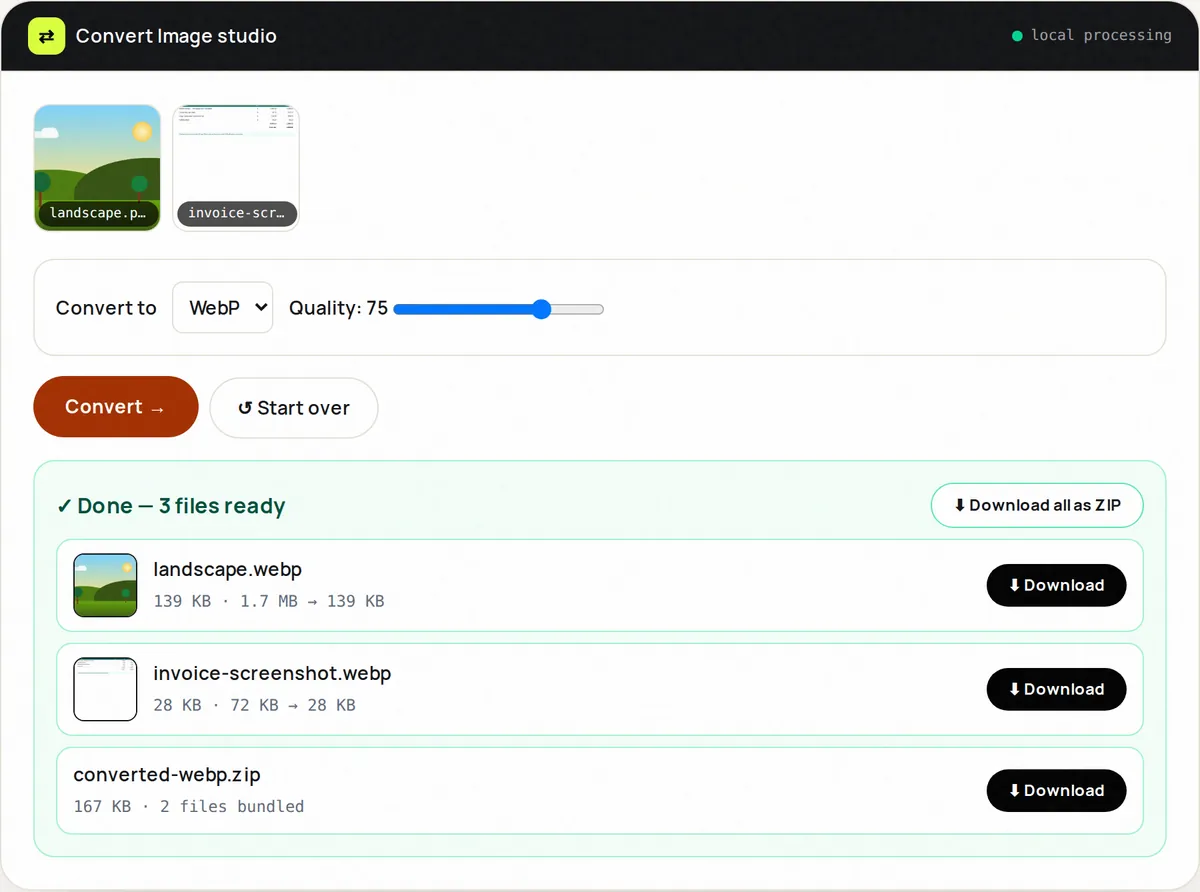
Each image is redrawn in your browser and saved in the new format; transparent areas become white in JPG. Every result shows its new file size, so you learn which format suits which kind of image.
A useful habit: convert PNG screenshots to WebP at quality 80 — often around half the size with no visible difference. For WebP-specific two-way flows, our dedicated WebP Converter adds decode-back convenience.
How to use Image Convert, step by step
- Upload up to 10 images (mixed formats ok).
- Pick target: JPG, PNG or WebP + quality.
- Click Convert. Each result shows its new size.
- Download individually or all together as a ZIP.
- Spot-check transparency and gradients.
Supported formats & limits
- Input: JPG, PNG, WebP, GIF, BMP or AVIF (10 max, 50 MB each)
- Targets: JPEG / PNG / WebP with quality slider
- Note: JPEG can't carry transparency
- WebP both ways? See WebP Converter
Key features
Batch of 10
Convert a whole asset folder in one pass.
Quality control
q-slider for JPEG/WebP targets.
Size readout
See the new size of every converted file.
Mixed inputs
JPGs, PNGs and WebPs together — one target out.
Correct matting
Transparent PNGs become clean white-background JPGs.
ZIP out
One download for the whole batch.
Privacy promise
Your files never leave this tab.
This tool processes your file with JavaScript libraries (pdf-lib, pdf.js, Canvas) running in your own browser. The file is not sent to our server, and nothing is kept after you close or reset the page. That makes it a sensible choice for contracts, IDs and other private documents.
Common use cases
Web ships
Everything → WebP before deploy.
PNG → JPG to duck under limits.
Editing
JPG → PNG before annotating to avoid artifacts.
Archives
Normalize a messy folder to one format.
Clients
Deliver the format their CMS demands.
Tips for best results
- Photos → WebP q75; screenshots → WebP q80; print → PNG.
- Check gradients after JPG conversion for banding.
- Keep a source archive before batch-converting.
- AVIF inputs convert fine; AVIF output isn't canvas-supported — use WebP.
- Set the quality here instead of converting and then compressing again.
Common mistakes to avoid
- JPG→PNG expecting smaller files — PNGs of photos are bigger.
- Converting transparency to JPG blind.
- Quality 100 for web — wasteful; 80 looks the same.
- Converting the same file back and forth — generation loss.
Learn more
- JPG vs PNG vs WebP vs AVIF: which image format should you use? — How JPEG, PNG, WebP, AVIF and GIF compress, when transparency matters, browser support, and which to pick for photos, screenshots and logos.
- How to optimize images for a faster website — A step-by-step workflow for resizing, compressing and converting website images, plus the HTML attributes that improve Core Web Vitals.
Frequently asked questions
+How do I change JPG to PNG?
Upload, pick PNG target, Convert, download. Note: file gets bigger, quality stays.
+Which format is smallest?
Usually WebP. For photos JPG comes next; for flat graphics and screenshots PNG can be competitive. Compare the sizes shown for your own images.
+Can I convert 10 images at once?
Yes — mixed inputs, one target, ZIP download.
+Does converting lose quality?
To PNG: no. To JPG/WebP: controlled by the quality slider — 80+ is visually lossless for most.
+What about transparency?
PNG/WebP keep it; JPG flattens to white.
+Can I convert to AVIF?
Browser canvas can't encode AVIF reliably yet — WebP is the practical universal target.