
What Rotate PDF does — and when to use it
Sideways scans are the paper cuts of office life: a phone photo taken in landscape, a feeder that flipped page 12, a whole 40-page scan shot at 90°. Rotate PDF fixes orientation in one pass — all pages at once, or just the strays you select.
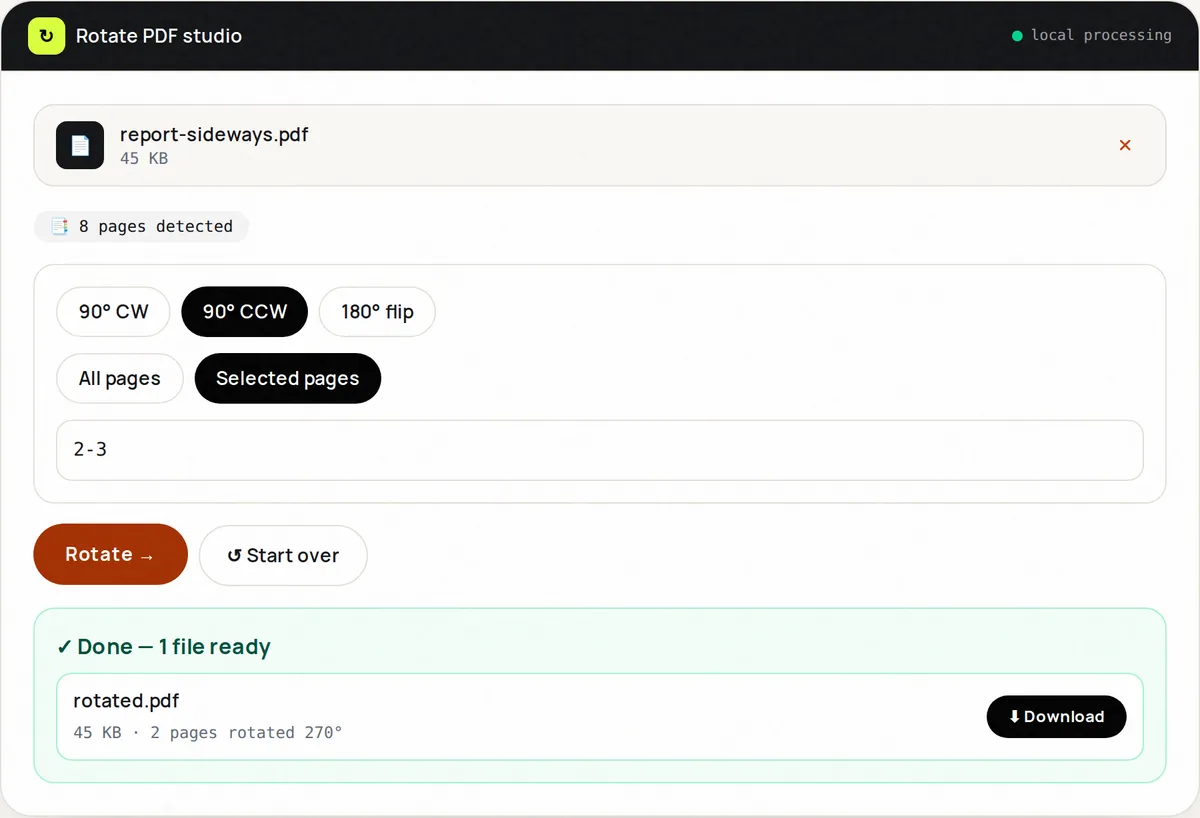
Pick 90° clockwise, 90° counter-clockwise (270°) or 180° flip. Target the whole document or type pages like 3, 7-9. Rotation is applied as PDF metadata where possible, so text stays vector-sharp — no re-render blur.
Common rescue: mixed-orientation scans where most pages are fine but five are sideways. Select just those five, rotate 90°, done — the rest untouched.
How to use Rotate PDF, step by step
- Upload one PDF and note its page count.
- Choose All pages or Selected pages (e.g. 3, 7-9).
- Pick 90° clockwise, 90° counter-clockwise or 180°.
- Click Rotate. The fixed PDF downloads immediately.
- Open and verify orientation, then reset for the next file.
Supported formats & limits
- Input: PDF up to 100 MB
- Angles: 90° CW, 90° CCW, 180°
- Targeting: whole file or explicit page list
- After rotating scans, consider Compress PDF
Key features
Surgical targeting
Fix five bad pages without touching 95 good ones.
Lossless rotation
Rotation metadata keeps text vectors crisp.
Live validation
Out-of-range pages are rejected with the valid range shown.
One-click presets
The three angles cover every real-world misfeed.
Instant output
No render queue — rotate and download.
Private
Sensitive scans never leave your device.
Privacy promise
Your files never leave this tab.
This tool processes your file with JavaScript libraries (pdf-lib, pdf.js, Canvas) running in your own browser. The file is not sent to our server, and nothing is kept after you close or reset the page. That makes it a sensible choice for contracts, IDs and other private documents.
Common use cases
Phone scans
Straighten landscape-taken pages to portrait.
Feeder misfeeds
Flip the upside-down chunk of a bulk scan.
Mixed decks
Rotate landscape charts inside portrait reports.
Photo bundles
Fix EXIF-ignored orientations before merging.
Print prep
Normalize orientation before binding.
Tips for best results
- Preview in your reader first and note exact bad pages — saves a second pass.
- 180° fixes upside-down; 90° fixes sideways — don't guess, look.
- Rotate before splitting — one pass on the full file beats five on slices.
- Still sideways after 90°? You needed 270° — retry.
- For image-only PDFs, rotation is instant; huge vector files take a few seconds.
Common mistakes to avoid
- Rotating all pages when only three are bad — use Selected.
- Typing 0 or pages beyond the count — check the displayed total.
- Rotating an encrypted file without unlocking.
- Assuming rotation OCRs text — it only changes orientation.
Learn more
- How to scan documents with your phone and get a clean PDF — Lighting, framing and settings that make phone photos of documents look like real scans, and how to combine them into one small PDF.
- How to merge, split and reorganize PDF pages without losing quality — When to merge, split, extract, delete, reorder or rotate PDF pages for application packs, reports and scans — without losing text quality.
Frequently asked questions
+How do I rotate a sideways PDF?
Upload, choose All or Selected pages, pick the angle, click Rotate, download.
+Can I rotate only some pages?
Yes — choose Selected and type e.g. 3, 7-9.
+Will quality drop?
No — rotation is applied losslessly as page metadata.
+What's the difference between 90° and 270°?
90° clockwise vs counter-clockwise. If one looks wrong, the other is right.
+Can I save the rotation permanently?
Yes — the downloaded file carries the new orientation everywhere.
+Does it work on scanned PDFs?
Perfectly — scans rotate just like text PDFs.