
Many everyday PDF tasks are really page-management tasks: combining a CV and certificates into one application file, sending an accountant only last year's statements, removing a blank page from a scan, or fixing pages that came out of the feeder upside down. These operations should never reduce quality, and with the right tools they don't.
Why page operations are lossless
Merging, splitting, extracting, deleting and reordering pages copy each page object — its text, fonts, vector graphics and images — into a new document exactly as it was. Nothing is re-rendered or re-compressed, so text stays selectable and searchable and images keep their original quality. Rotation is lossless too: it changes the page's rotation setting rather than redrawing the content.
A few interactive features may not survive page copying: bookmarks (outlines), some form fields and document-level JavaScript belong to the document rather than to individual pages. If you rely on fillable forms, test with one file first.
Choosing the right tool
- Several files → one file: Merge PDF. Put the files in order before merging.
- One file → several files: Split PDF, by ranges such as 1-3, 4-10 or into equal chunks.
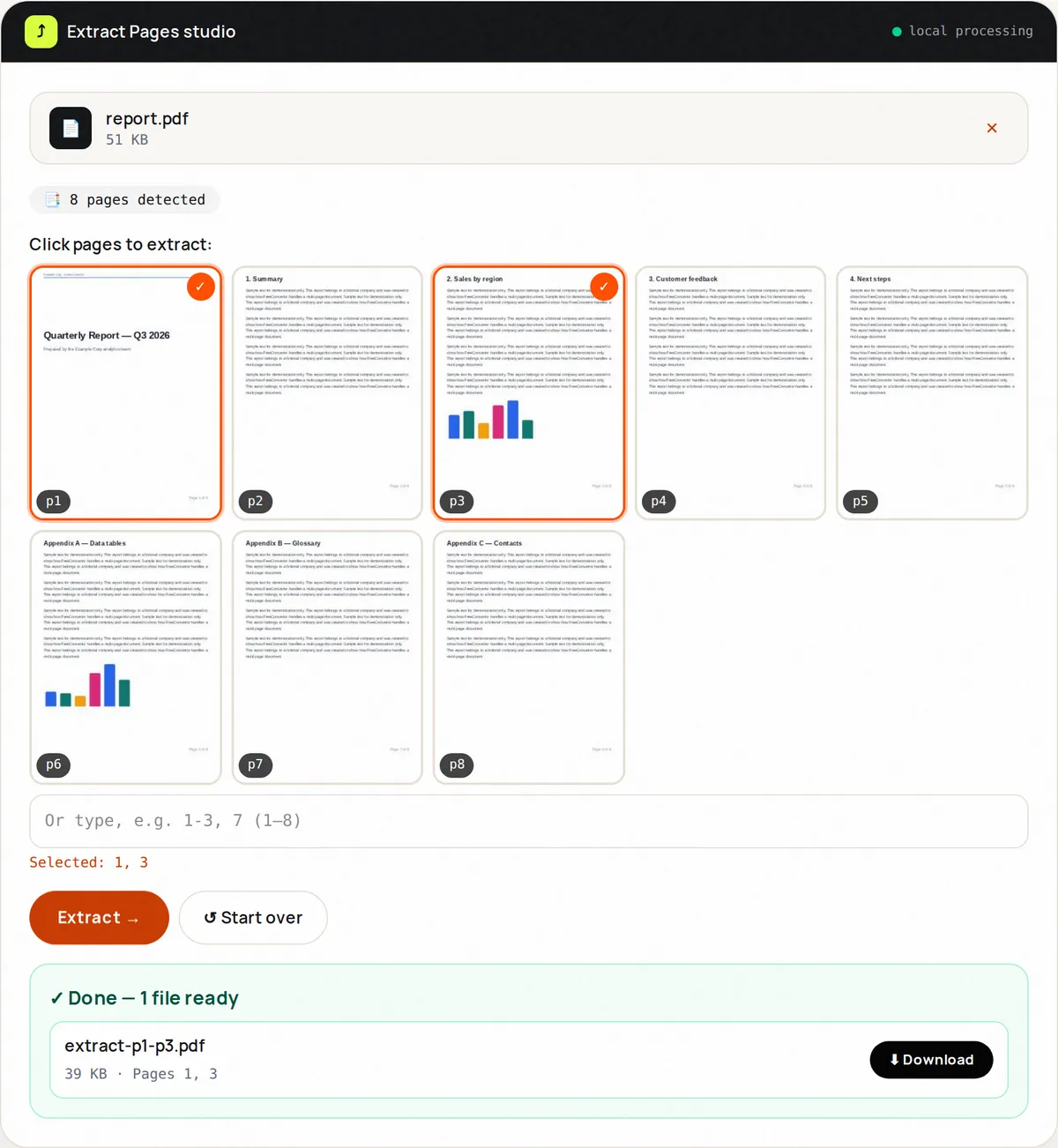
- One file → one shorter file with chosen pages: Extract PDF Pages.
- Remove a few pages and keep the rest: Delete PDF Pages.
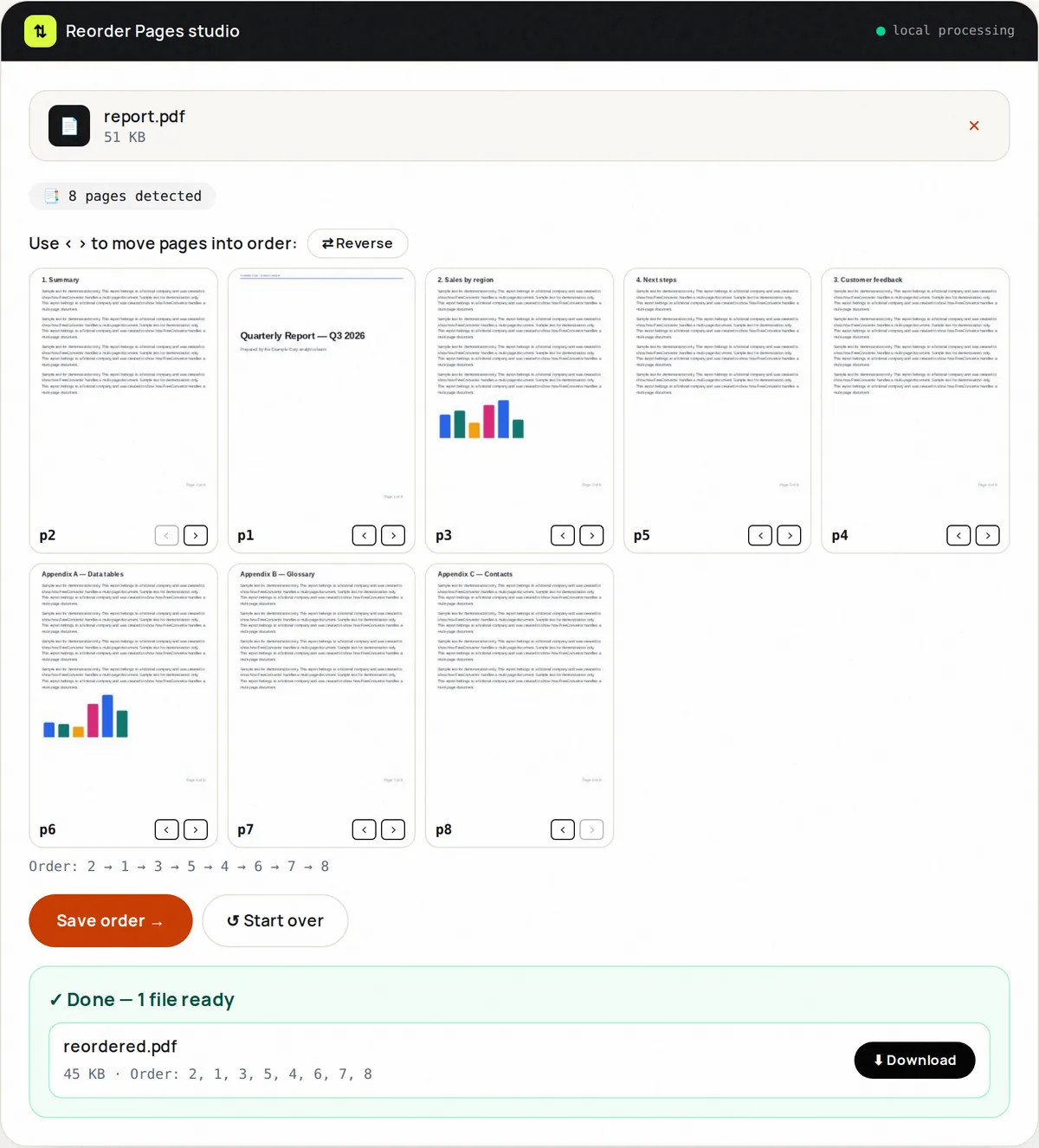
- Same pages, different order: Reorder PDF Pages.
- Sideways or upside-down pages: Rotate PDF, for all pages or only those you list.
Example: building a job or visa application pack
- Collect the documents as PDFs. Convert photos of certificates with JPG to PDF or PDF Scanner.
- Remove anything that should not be sent — blank backs of scanned pages, unrelated pages — with Delete PDF Pages.
- Fix any sideways pages with Rotate PDF.
- Merge everything in the order the portal requests (often: form, CV, certificates, ID).
- If the merged file exceeds the upload limit, compress it with Compress PDF, starting with the lossless level.
- Open the final file and check page count, order and orientation before submitting.
Understanding page ranges
Split, Extract, Delete and Rotate accept page lists in the same format: single pages separated by commas and ranges with a hyphen. For example, 1-3, 5, 8-10 means pages 1, 2, 3, 5, 8, 9 and 10. In Split PDF, put each output file on its own line (or separate them with ;). Pages are counted from 1 as shown in the page thumbnails, which may differ from the numbers printed on the pages themselves (for example when a report has unnumbered cover pages).
Tips for clean results
- Name files with numeric prefixes (01-form.pdf, 02-cv.pdf) so they sort in the right order automatically.
- Unlock password-protected PDFs first with the Unlock mode of Protect PDF; encrypted pages cannot be copied.
- Keep your original files until the recipient confirms they received what they need.
- Remember that any change to a digitally signed PDF invalidates its signature. Sign last, after organizing pages.
Frequently asked questions
Does merging PDFs reduce quality?
No. Pages are copied as they are, so text, fonts and images are unchanged. Only some document-level features such as bookmarks may be lost.
What is the difference between Split and Extract?
Split produces several files (one per range). Extract produces a single new file containing all the pages you selected.
Can I merge PDFs on my phone?
Yes, the tools work in mobile browsers. Very large files are easier to handle on a computer because phones have less memory.