
What Protect PDF does — and when to use it
Email, cloud links and USB sticks are easy to misdirect, yet we use them to send offer letters, medical results, statements and ID copies every day. Protect PDF adds an open password to your document using AES-256 — the strongest encryption defined in the PDF standard (ISO 32000-2) — so the file cannot be opened without the password.
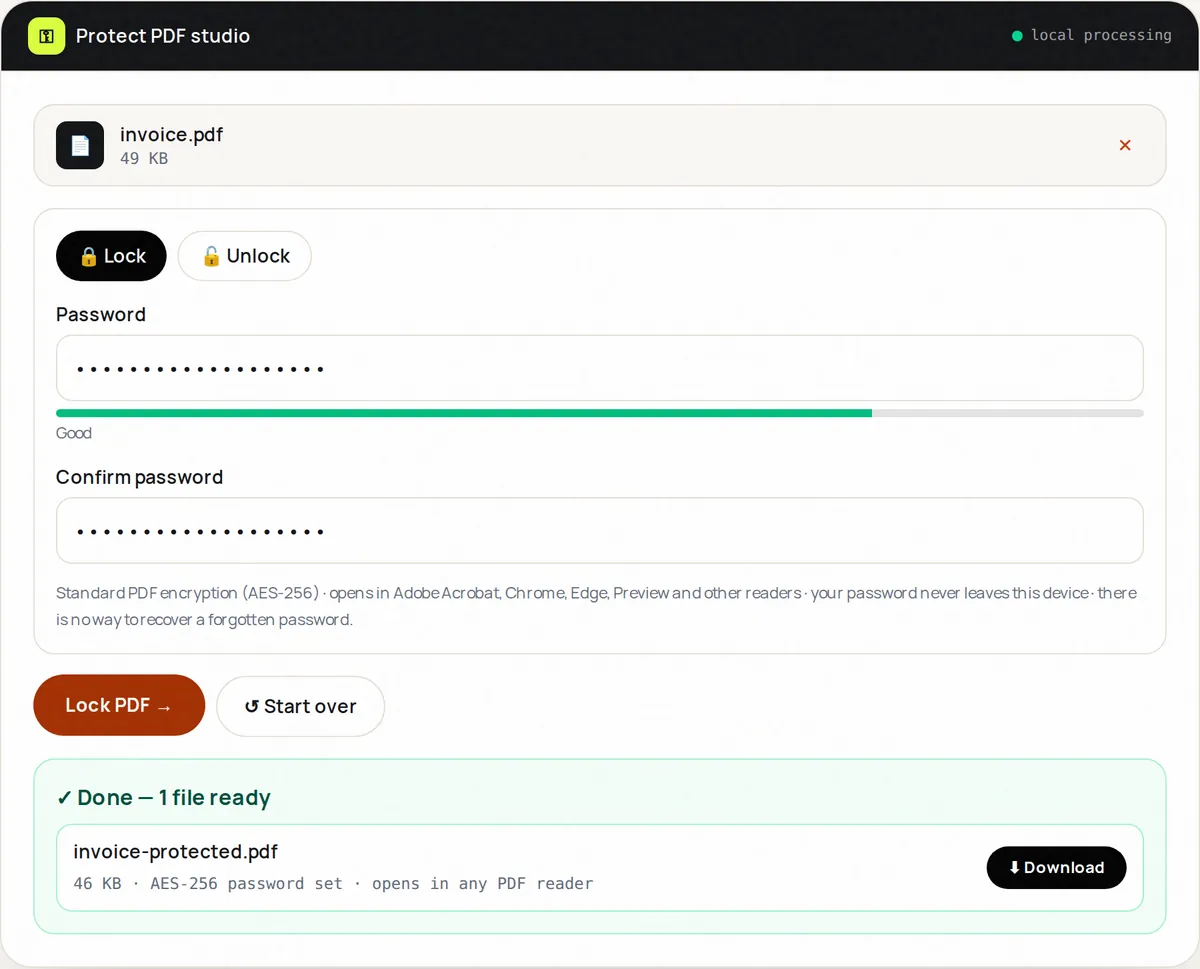
The result is an ordinary password-protected PDF. Adobe Acrobat and Reader, the PDF viewers built into Chrome, Edge and Firefox, macOS Preview and most mobile apps ask for the password and then open the file normally. Encryption happens in your browser: neither the document nor the password is sent anywhere.
The same page also removes a password you know. Switch to Unlock, choose a protected PDF, enter its password and save an unprotected copy — useful for archiving your own statements or payslips. It cannot open files whose password you do not know, and you should only unlock documents you are entitled to open.
How to use Protect PDF, step by step
- Upload one PDF (up to 100 MB).
- Keep “Lock” selected and type a strong password twice.
- Click Lock PDF and download the protected copy.
- Open it in your PDF reader to confirm the password prompt appears.
- Send the file and share the password through a different channel, such as a text message or phone call.
Supported formats & limits
- Input: one PDF up to 100 MB
- Encryption: standard PDF security handler, AES-256 (revision 6)
- Output: password-protected PDF that opens in mainstream PDF readers
- Unlock mode: removes the password from a PDF when you enter the correct password
Key features
Standard PDF encryption
AES-256, recognized by Acrobat, browsers, Preview and mobile apps — no special software for the recipient.
Password stays on your device
Encryption runs in your browser; we never see the file or the password.
Strength meter
Live feedback encourages long, hard-to-guess passwords.
Lock and unlock
Add a password, or remove one you know, on the same page.
Content unchanged
Pages, text and images are not altered — only encrypted.
Clear errors
A wrong password or an already-protected file produces a plain message.
Privacy promise
Your files never leave this tab.
This tool processes your file with JavaScript libraries (pdf-lib, pdf.js, Canvas) running in your own browser. The file is not sent to our server, and nothing is kept after you close or reset the page. That makes it a sensible choice for contracts, IDs and other private documents.
Common use cases
HR and offers
Protect salary letters and contracts before emailing them.
Healthcare
Send referrals and results to patients more safely.
Finance
Encrypt statements and tax documents for your accountant.
Legal
Protect drafts and evidence in transit.
Personal archive
Keep ID scans on shared drives behind a password.
Tips for best results
- Use a passphrase of four or five random words — long, strong and easy to type.
- Never send the password in the same email as the file.
- Store the password in a password manager; there is no way to recover it.
- Open the protected file yourself before sending it.
- Remove pages the recipient should not see before encrypting — a password does not redact.
Common mistakes to avoid
- Using a short or obvious password such as a name or date.
- Emailing the file and the password together.
- Forgetting the password — nobody can recover it.
- Assuming the password stops recipients from copying or forwarding the content after they open it.
Learn more
- How to password-protect a PDF — and what PDF encryption really protects — Open vs permission passwords, why AES-256 matters, how to choose and share a password safely, and what a PDF password cannot do.
Frequently asked questions
+How do I password-protect a PDF?
Upload the PDF, keep Lock selected, type and confirm a password, click Lock PDF and download the protected copy.
+Will the recipient need special software?
No. The file uses standard PDF encryption, so any mainstream PDF reader — Acrobat, Chrome, Edge, Firefox, Preview, most phone apps — asks for the password and opens it.
+What encryption is used?
AES-256 using the PDF standard's security handler (revision 6), the strongest option defined in ISO 32000-2. Very old PDF readers from before about 2010 may not support it.
+Do you store my password or file?
No. Everything happens in your browser. Nothing is uploaded or stored.
+What if I forget the password?
The file cannot be opened or recovered — not by us, not by anyone. Keep passwords in a password manager.
+Can I remove a password from a PDF?
Yes, if you know it. Switch to Unlock, choose the file, enter the current password and download the unlocked copy.
+I have a .locked.pdf file from an earlier version of this tool. Can I still open it?
Yes. Choose Unlock, select the .locked.pdf file and enter the password you used; the original PDF is restored.