
What PDF Scanner does — and when to use it
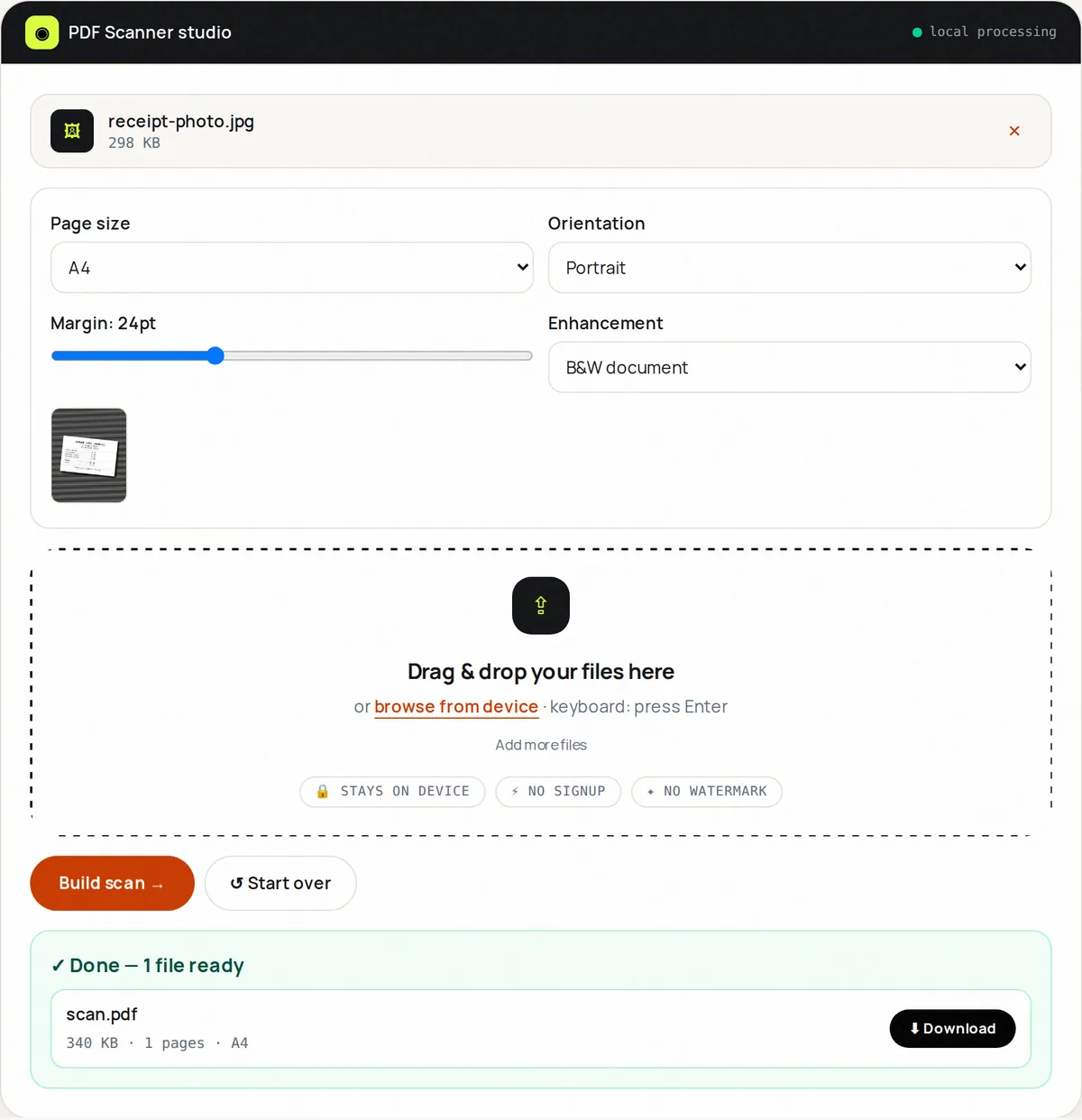
No scanner? No problem. PDF Scanner turns phone photos of paper into crisp, scanner-style PDFs: pick enhancement (Auto, Grayscale, B&W document, Vivid), reorder shots, and build a clean multi-page PDF that looks like it came off a flatbed.
Auto lifts contrast and brightness while muting color cast; Grayscale suits forms; B&W cranks contrast for text legibility; Vivid keeps color charts punchy. Processing uses canvas filters locally — your IDs and receipts never upload.
For best results, shoot top-down in daylight with a little margin around the page. The tool handles the rest: enhancement, centering, pagination and Fit/A4/Letter sizing.
How to use PDF Scanner, step by step
- Upload up to 20 photos (JPG/PNG/WebP) of your pages.
- Choose enhancement: Auto, Grayscale, B&W or Vivid. Previews update live.
- Set the page order with the ↑ ↓ buttons and choose page size (Fit/A4/Letter).
- Click Build scan and download.
- Check legibility; re-shoot blurry pages rather than over-filtering.
Supported formats & limits
- Input: photos up to 50 MB (20 max)
- Filters: Auto / Grayscale / B&W / Vivid (canvas-based)
- Output: scanner-style PDF with one enhanced JPEG image per page
- Need plain photo layout? Use JPG to PDF instead
Key features
Four doc filters
From gentle Auto to punchy B&W for faded receipts.
Live previews
See enhancement before committing to the build.
Multi-page builds
Twenty shots become one paginated scan.
Page sizing
Fit for archives, A4 for print parity.
Phone-friendly
Shoot, enhance and build without leaving mobile.
Private
Sensitive pages never leave the device.
Privacy promise
Your files never leave this tab.
This tool processes your file with JavaScript libraries (pdf-lib, pdf.js, Canvas) running in your own browser. The file is not sent to our server, and nothing is kept after you close or reset the page. That makes it a sensible choice for contracts, IDs and other private documents.
Common use cases
Receipts
Expense scans that accounting accepts.
Homework
Phone-to-PDF submissions in minutes.
Contracts on the go
Sign, snap, build, send from a café.
Archives
Digitize family letters and recipes.
Field work
Site notes and permits as one tidy PDF.
Tips for best results
- Good light, a top-down angle and a little margin around the page matter more than any filter.
- B&W for text, Vivid for color charts — don't B&W a graph.
- Retake blur rather than cranking contrast.
- A4 output prints true-to-size for forms.
- Build, then Compress if the scan must email under 5 MB.
Common mistakes to avoid
- Shooting at an angle with shadows — flatten and relight.
- B&W-filtering color diagrams into mush.
- Uploading HEIC without converting — export JPG first.
- Expecting searchable text — this builds image PDFs; use an OCR tool afterwards if you need to search or copy text.
Learn more
- How to reduce PDF file size (and what actually makes PDFs big) — Why some PDFs are huge, which compression methods work for which kind of document, and how to get under email and upload limits without ruining quality.
- How to scan documents with your phone and get a clean PDF — Lighting, framing and settings that make phone photos of documents look like real scans, and how to combine them into one small PDF.
Frequently asked questions
+How do I scan documents with my phone?
Photograph pages top-down, upload here, pick an enhancement, build the PDF.
+Which filter should I use?
Auto for most, Grayscale for forms, B&W for faded text, Vivid for color.
+How many pages can I scan?
Up to 20 photos per PDF; merge multiple PDFs for longer docs.
+Will it look like a real scan?
Very close for well-lit shots — contrast-lifted, evenly toned, paginated.
+Is my ID safe?
Yes — enhancement and building run fully on-device.
+Can I rescan one page?
Yes — replace that photo and rebuild; no account or history to fight.