
A modern phone camera has more than enough resolution to replace a flatbed scanner for everyday paperwork: receipts, forms, letters, homework and ID copies. What makes the difference between a crisp, professional-looking PDF and a grey, shadowy photo is mostly how you take the picture and how you clean it up afterwards.
Take a better photo
- Use even, indirect light. Daylight from a window or a ceiling light works well; avoid a single desk lamp that creates a hot spot.
- Watch for your own shadow. Stand so the light is not behind you, or hold the phone slightly to the side.
- Place the page on a contrasting, plain background — white paper on a dark table — so the edges are clear.
- Hold the phone parallel to the page and fill most of the frame with the document. Tilted shots make text lines converge.
- Turn off the flash for glossy paper; it causes glare that hides text.
- Tap to focus on the text and keep still. A blurred photo cannot be fixed by any filter.
Clean it up and build the PDF
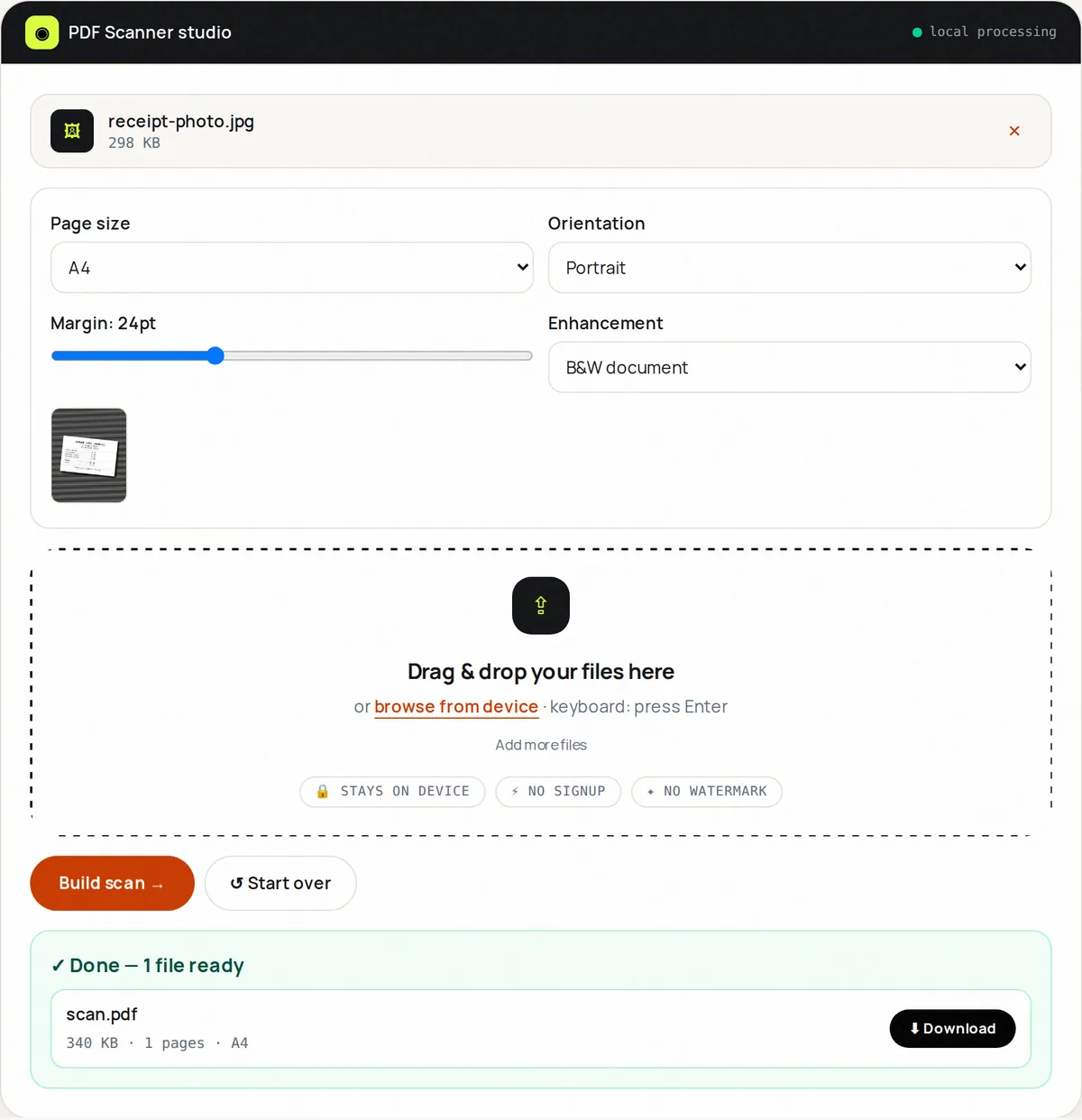
PDF Scanner takes your photos and applies a document-style enhancement before placing them into a PDF. Choose the filter that matches the paper:
- Auto (contrast boost): good default for printed letters and forms in colour.
- Grayscale: removes colour casts from warm indoor lighting and keeps files smaller.
- B&W document: turns the page into pure black text on white — the most "scanner-like" and smallest, ideal for text-only pages, but not for photos or colour stamps.
- Vivid colour: for documents where colour carries meaning, such as charts or highlighted notes.
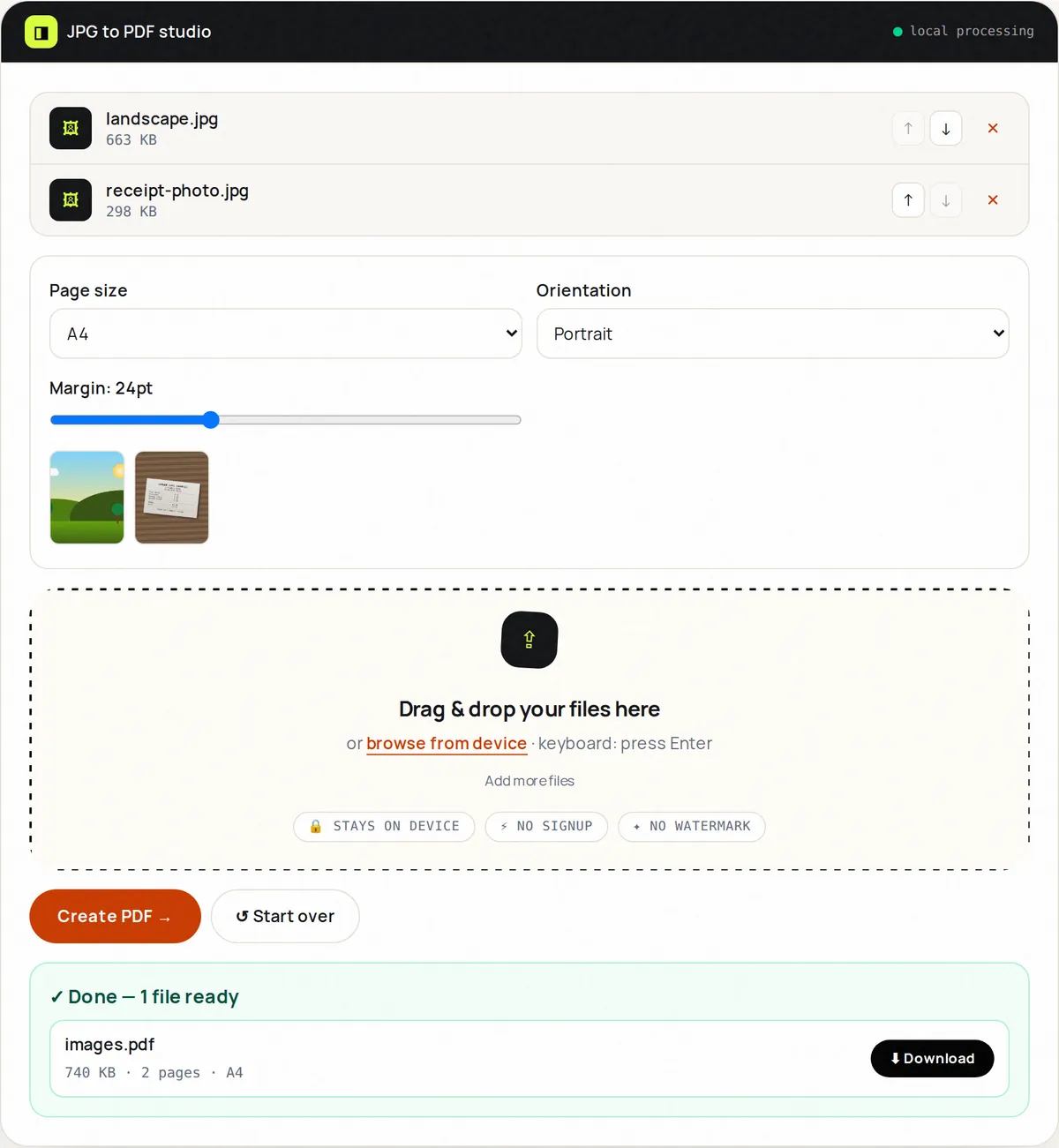
Pick A4 or US Letter page size if the PDF might be printed, and keep a small margin. Arrange the pages in order before you build the PDF. If a photo is sideways, fix it afterwards with Rotate PDF, or crop away the background first with Image Crop.
Keep the file small enough to send
Phone photos are large — often 3–5 MB each. A ten-page document can reach 40 MB if photos are used as-is. The scanner re-encodes images when it builds the PDF, and the B&W and Grayscale filters reduce size further. If the result is still above an upload limit, run it through Compress PDF at the Balanced level, which re-encodes the pages at 150 DPI.
Built-in phone scanners
Your phone may already include a document scanner: the Notes and Files apps on iPhone and the Google Drive app on Android can capture pages with automatic edge detection. They are a good option when you are scanning many pages at once. FreeConvertor is useful when you already have photos, want to choose the enhancement yourself, or prefer that the files stay on your device rather than in a cloud account.
Checklist before you send
- Open the PDF and zoom in on the smallest text, such as dates and reference numbers.
- Check that every page is present and in the right order.
- Make sure no background objects, fingers or other papers are visible.
- For identity documents, confirm the recipient really needs the full document and send it through a secure channel; consider adding a password with Protect PDF.
Frequently asked questions
What resolution do I need for a readable scan?
Around 150–200 DPI at the printed size is plenty for text. A typical 12-megapixel phone photo of a letter-size page already exceeds 300 DPI, so focus on sharpness and lighting rather than resolution.
Can I make the text searchable?
Not with this tool. Searchable scans need optical character recognition (OCR), which FreeConvertor does not perform. Many PDF readers and phone scanner apps offer OCR.
Can I use iPhone HEIC photos?
Only if your browser can open them. If a HEIC photo is rejected, set your camera to "Most Compatible" (JPEG) or export the photo as JPEG first.