
What Extract PDF Pages does — and when to use it
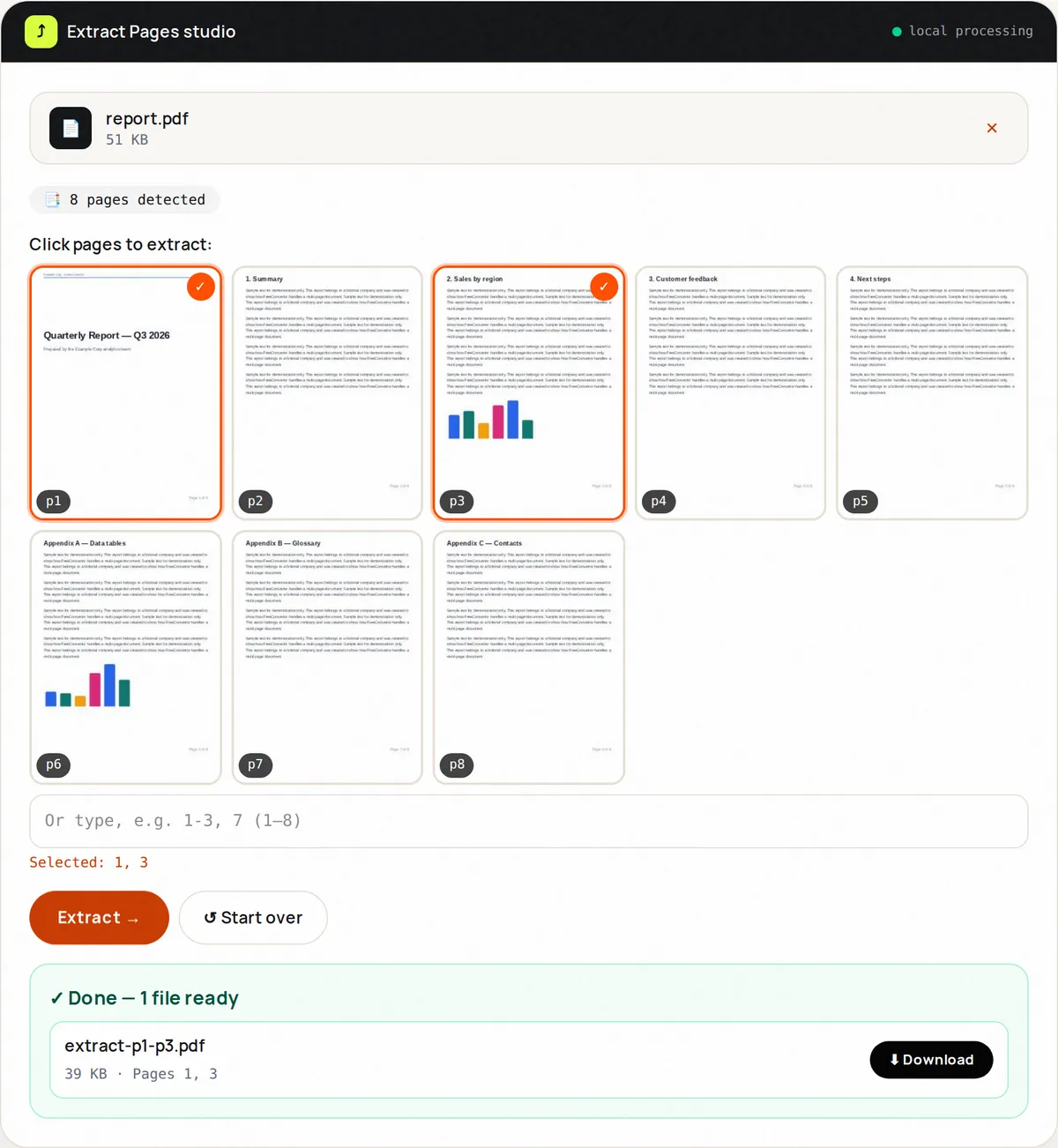
Extract PDF Pages is the scalpel to Split's cleaver: instead of many slices, you get one new PDF containing only the pages you name — 1-3, 7, 10-12 — in their original order. The source file is never altered.
It's the fastest route to “send chapter 4 only,” “pull the signed page,” or “build a highlights reel from a 300-page report.” The output is named after the first and last page extracted (extract-p1-p12.pdf).
Extraction copies pages into a fresh document — text stays selectable and the file contains only what you chose. Chain it with Merge to reassemble custom documents from multiple sources.
How to use Extract PDF Pages, step by step
- Upload one PDF and read its page count.
- Type pages/ranges to keep (e.g. 1-3, 7, 10-12).
- Validation confirms every number is in range.
- Click Extract and download the new focused PDF.
- Merge multiple extracts to build custom packs.
Supported formats & limits
- Input: PDF up to 100 MB
- Syntax: comma/space separated numbers and hyphen ranges
- Output: single PDF with the selected pages in their original order
- Need many files? Use Split PDF instead
Key features
Single-file focus
One clean output, not a folder of slices.
Thumbnail picking
Click page thumbnails or type ranges — or combine both.
Strict validation
Typos and out-of-range numbers are caught pre-flight.
Lossless copy
Text, fonts and vectors preserved.
Clear naming
The page range appears in the filename.
Merge-ready
Extracts feed perfectly into Merge PDF.
Privacy promise
Your files never leave this tab.
This tool processes your file with JavaScript libraries (pdf-lib, pdf.js, Canvas) running in your own browser. The file is not sent to our server, and nothing is kept after you close or reset the page. That makes it a sensible choice for contracts, IDs and other private documents.
Common use cases
Chapter pulls
Send chapter 4 without the 400-page manual.
Signature pages
Isolate the signed sheet for records.
Highlights
A 5-page exec summary from a 100-page report.
Evidence
Responsive pages only for counsel.
Teaching
This week's reading as one handout.
Tips for best results
- Need a different order? Extract first, then use Reorder PDF Pages.
- Extract, review, then merge extracts from several sources into a dossier.
- Keep ranges tight; every extra page costs email bytes.
- Name the download immediately for the recipient.
- Verify extracted page numbers against the source TOC.
Common mistakes to avoid
- Typing 1-30 when you meant 1-3 — check the output count.
- Extracting from an encrypted file without unlocking.
- Assuming annotations always survive — flatten complex forms first.
- Closing the tab before downloading — nothing is saved online.
Learn more
- How to merge, split and reorganize PDF pages without losing quality — When to merge, split, extract, delete, reorder or rotate PDF pages for application packs, reports and scans — without losing text quality.
Frequently asked questions
+How do I extract pages from a PDF?
Upload, type the pages to keep (e.g. 2-5, 8), click Extract, download the new PDF.
+Extract vs Split — what's the difference?
Extract builds one PDF from chosen pages; Split creates many PDFs from ranges.
+Can I reorder while extracting?
No — pages keep their original order. Extract first, then rearrange with Reorder PDF Pages.
+Is quality affected?
No — vector pages are copied losslessly.
+Can I extract from a scanned PDF?
Yes — scanned pages extract like any other.
+Does the original change?
Never — extraction reads; it doesn't modify.